Manage DNS Records
You can manage your domain’s DNS records directly from your dashboard. This allows you to add, update, or delete records such as A, AAAA, CNAME, MX, TXT, and other commonly used DNS entries.
This page explains how users reach the DNS management screen and what they can do there.
The Control Panel Analogy: Think of DNS Settings like the control panel for your domain. It tells the internet where your website lives, where your emails should go, and how different services connect to your domain. If a record is incorrect, traffic can go to the wrong place or fail entirely.
How to Access DNS Settings
Users can reach DNS Settings in two ways:
-
From the Dashboard:
On the main dashboard, users can click on Domains to view their purchased domains.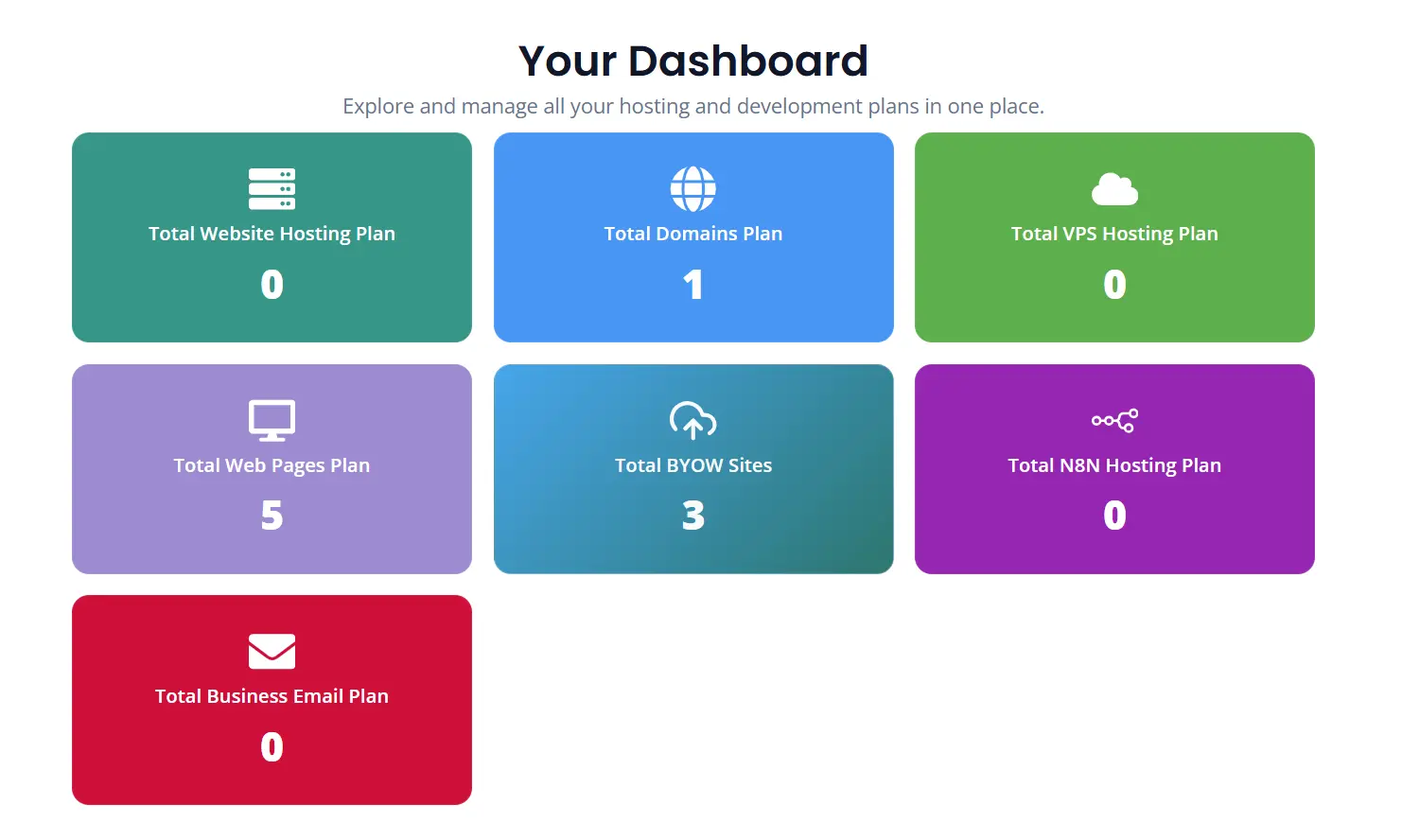
-
From the Left Menu:
Users can also click Domains from the left-side navigation menu.
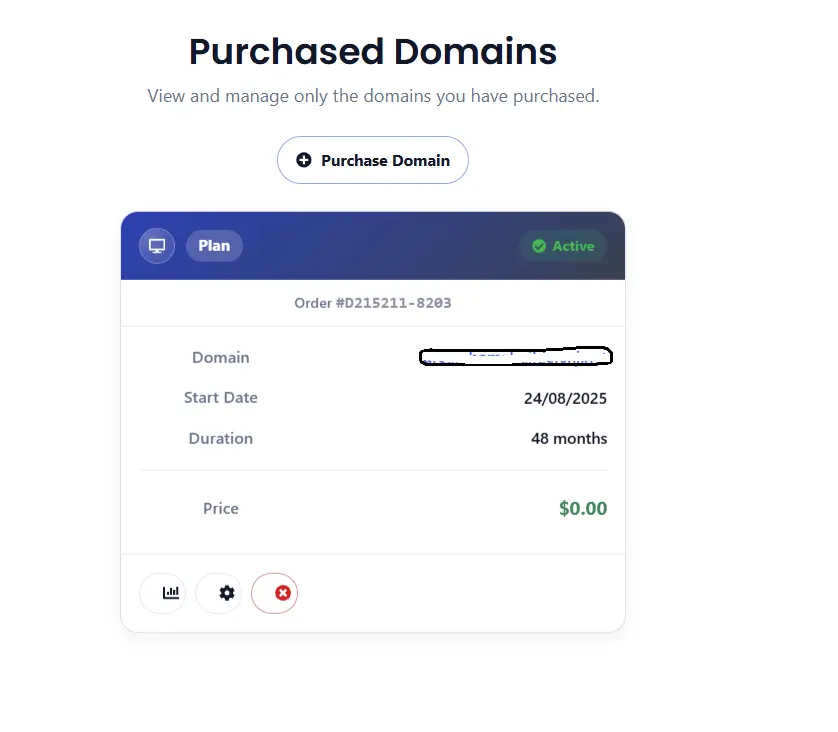
After that, they will see a domain card showing details such as:
- Domain name
- Order information
- Start date
- Duration
- Status
On the domain card, users can click the Configure icon to open domain configuration options.
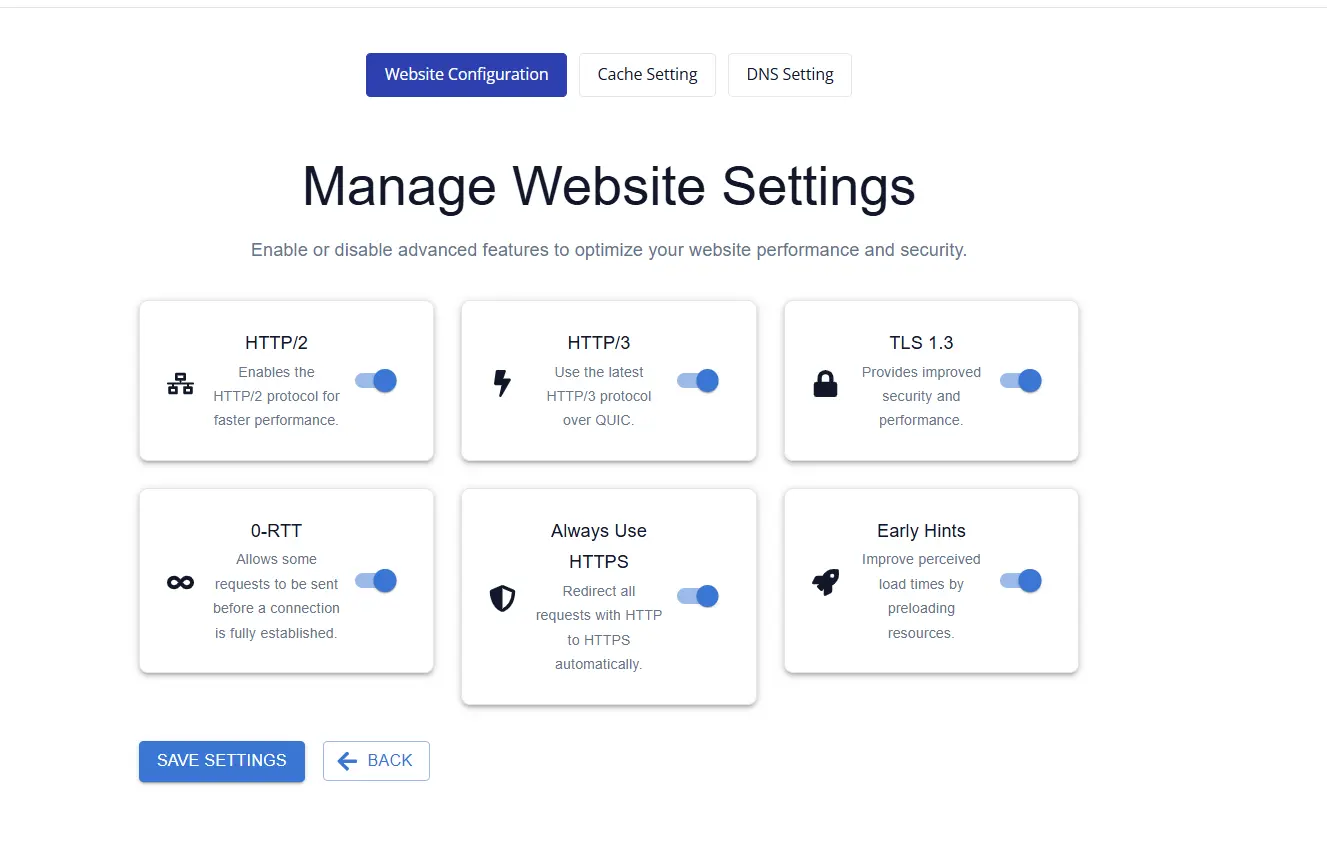
From the configuration screen, users will see tabs such as:
- Website Configuration
- Cache Setting
- DNS Setting
Clicking DNS Setting takes the user to the DNS management page, where they can manage their records.
What Users Can Do in DNS Settings
From the DNS Settings page, users can:
- Add a new DNS record
- Edit an existing DNS record
- Delete a DNS record they no longer need
This gives users full control over common DNS use cases such as:
- Pointing a domain to a website or server
- Connecting subdomains
- Setting up email delivery
- Verifying ownership for third-party services
- Adding security and authentication records
Common DNS Record Types
A Record
An A record points a domain or subdomain to an IPv4 address.
Example:
example.com → 192.0.2.1
Used for:
- Connecting a domain to a web server
- Hosting websites on IPv4 infrastructure
AAAA Record
An AAAA record points a domain or subdomain to an IPv6 address.
Example:
example.com → 2001:db8::1
Used for:
- Connecting a domain to IPv6-enabled infrastructure
CNAME Record
A CNAME record points one domain name to another domain name instead of directly to an IP address.
Example:
www.example.com → hosting.provider.net
Used for:
- Pointing
wwwto a primary domain - Connecting services such as website hosting platforms
MX Record
An MX record defines which mail servers receive email for your domain.
Example:
example.com → mail.examplehost.com
Used for:
- Receiving business email
- Connecting Google Workspace, Microsoft 365, Zoho Mail, and similar services
TXT Record
A TXT record stores text-based information associated with your domain.
Example:
v=spf1 include:_spf.google.com ~all
Used for:
- SPF email authentication
- Domain verification
- Security policies such as DMARC
- Third-party service validation
NS Record
An NS record identifies the authoritative name servers for a domain or delegated subdomain.
Used for:
- Delegating DNS authority
- Advanced DNS hosting scenarios
In most cases, users should only modify NS records when instructed by a domain or DNS administrator.
Typical DNS Management Flow
A user typically follows this sequence:
- Open the Dashboard
- Click Domains from the dashboard or left navigation
- Select the domain card
- Click the Configure icon
- Open the DNS Setting tab
- Add, edit, or delete DNS records as needed
- Save changes
Adding a DNS Record
When adding a record, users usually provide:
- Type — such as A, AAAA, CNAME, MX, or TXT
- Name / Host — such as
@,www,mail, or a subdomain - Value / Target — IP address, hostname, or text value
- TTL — Time to Live, which controls DNS caching duration
- Priority — required for MX records
Example use cases:
- Point
@to a website server - Point
wwwto a hosted application - Add a TXT record for SPF or verification
- Add MX records for email hosting
Editing a DNS Record
Users may need to edit a DNS record when:
- Migrating a website to a new host
- Changing mail providers
- Updating a verification token
- Correcting a wrong IP address or target
Be careful when editing live records, since incorrect values can temporarily affect website access, email delivery, or connected services.
Deleting a DNS Record
A DNS record can be deleted when it is no longer needed.
Examples:
- Removing an old verification TXT record
- Deleting an unused subdomain
- Cleaning up outdated A or CNAME records after migration
Important: Deleting the wrong DNS record can interrupt your website, email, or other domain-connected services. Always confirm the record is no longer required before removing it.
Best Practices for Managing DNS
1. Keep Records Organized
Use clear record names and only keep records that are actively needed.
2. Avoid Conflicting Records
For the same hostname, avoid configurations that conflict, such as mixing incompatible record types.
3. Double-Check Before Saving
A small typo in an IP address, hostname, or TXT value can break a service.
4. Understand DNS Propagation
DNS changes may not appear instantly everywhere. Depending on TTL and resolver cache, updates can take time to propagate.
5. Protect Critical Email Records
Be especially careful with:
- MX
- SPF
- DKIM
- DMARC
Incorrect email records can cause delivery failures or messages landing in spam.
Why DNS Settings Matter
1. Website Availability
DNS determines where your domain points. Without correct records, users may not be able to access your website.
2. Email Reliability
Mail-related DNS records are essential for receiving and sending email properly.
3. Service Verification
Many external tools require TXT or CNAME records to verify domain ownership.
4. Security and Trust
Proper DNS configuration supports HTTPS, secure email delivery, and trusted service integrations.
Before You Make Changes
Before adding, editing, or deleting DNS records, confirm:
- What service the record is for
- Whether the record already exists
- Whether changing it could affect live traffic
- Whether you have the correct values from your hosting or email provider
If you are unsure, it is best to verify the required record details first.
Manage Your Domain with Confidence
The DNS Settings page gives users a simple way to control how their domain works across websites, email, and connected services. By accessing Domains, opening the domain card, clicking Configure, and selecting DNS Setting, users can manage records in one place without needing to leave the dashboard.
Would you like me to also generate a matching page for A records, CNAME records, MX records, or DKIM records in the same style?