🎨 How to Change and Customize an Icon
Customizing icons helps improve your design and makes your UI more visually appealing.
Follow these simple steps to change and optimize an icon:
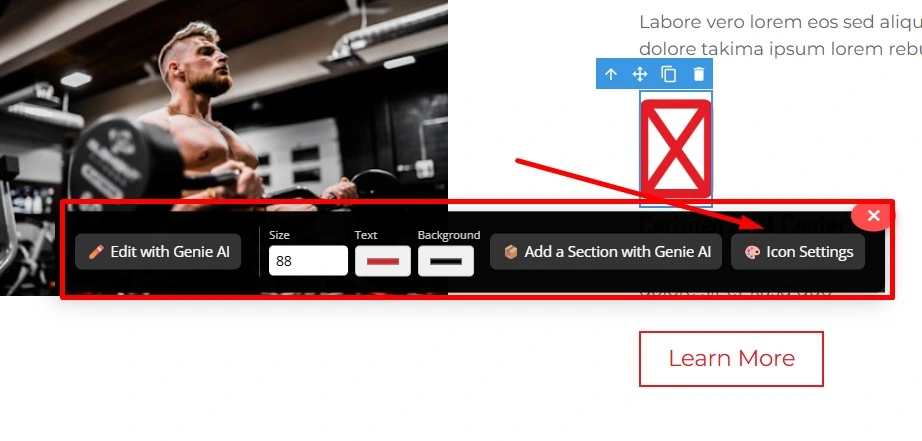
🛠️ Step 1: Click the Icon and Open Icon Settings
Select the icon you want to edit.
Then click on the Icon Settings option to open the customization panel.
🎨 Step 2: Change the Icon
Choose a new icon according to your requirement.
You can select any icon from the available icon library.
💾 Step 3: Save the Window
After selecting your icon, click Save.
Once saved, multiple new options will appear that allow you to further optimize your icon.
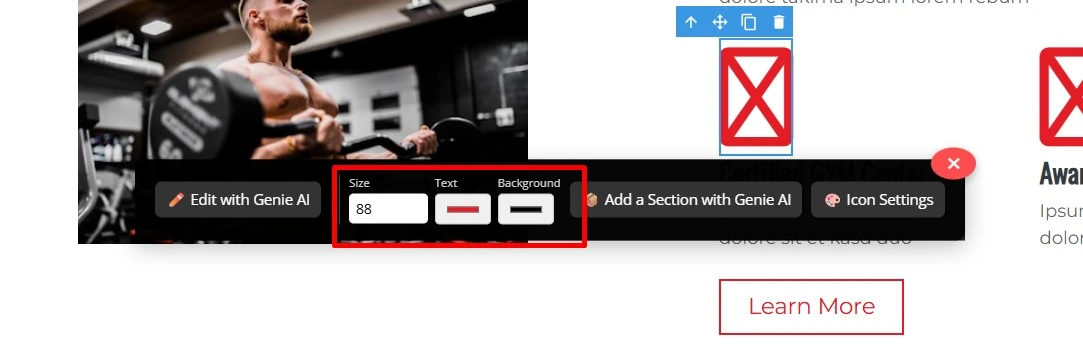
✏️ Step 4: Customize Size & Colors
If you want to adjust the design of the icon, you can modify:
- Icon Size
- Text Color
- Background Color
- Additional styling options
✅ Final Result
Your icon is now fully customized!
With just a few clicks, you can easily change the icon and adjust its style to match your layout and design perfectly.