How to Change Button Text Color, Font & Background in Website Builder
🎨 How to Change Button Text Color to Black (Step-by-Step Guide)
Customizing buttons is one of the easiest ways to improve your website’s look and user experience.
Follow these simple steps to change the button text color, background, font, and add hyperlink.
✅ Step 1: Open the Website Builder & Select the Button
Click on the button you want to edit inside your website builder tool.

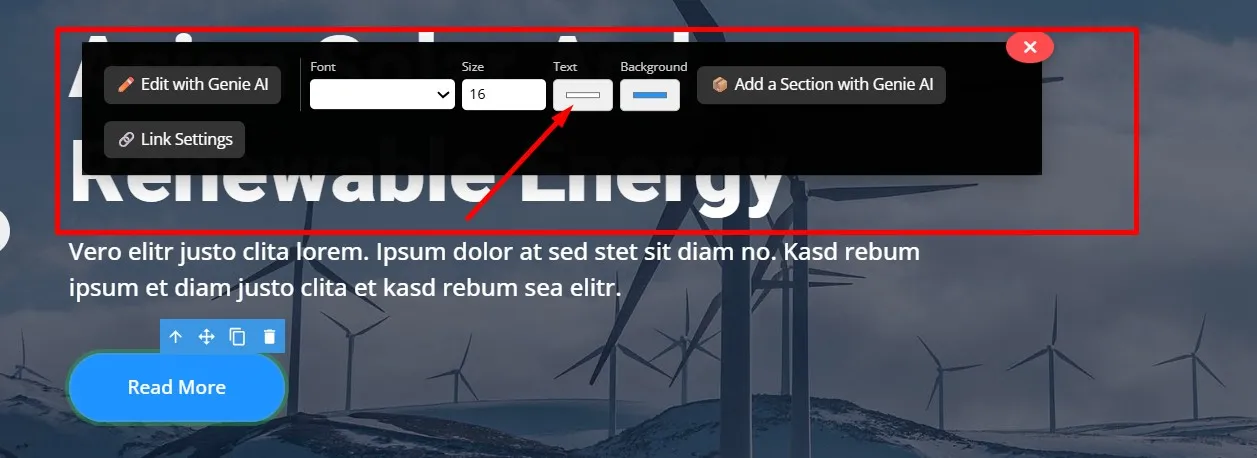
🎨 Step 2: Change the Button Text Color
Once the button is selected, open the Text / Typography settings.
Here, you can easily change the button text color to black or any color you want.
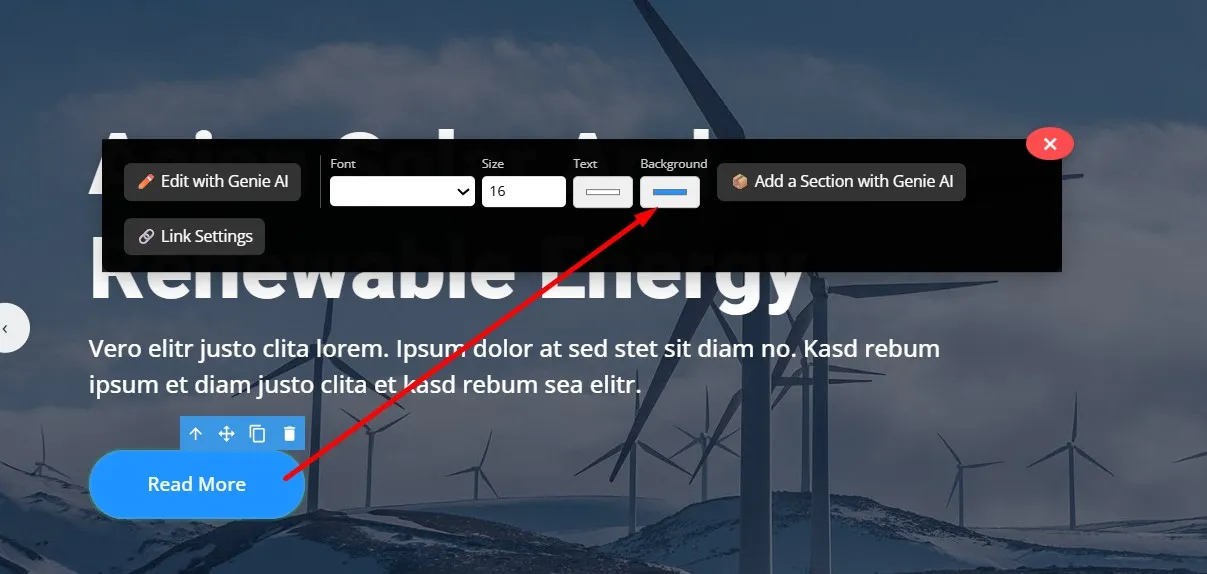
🎨 Step 3: Change the Button Background Color
If you want to modify the background color:
- Click on Background
- Choose your preferred color from the color picker
- Apply instantly
🔠 Step 4: Change the Button Font
To change the button’s font style:
- Open the Font / Typography section
- Choose your desired font family, size, weight, etc.

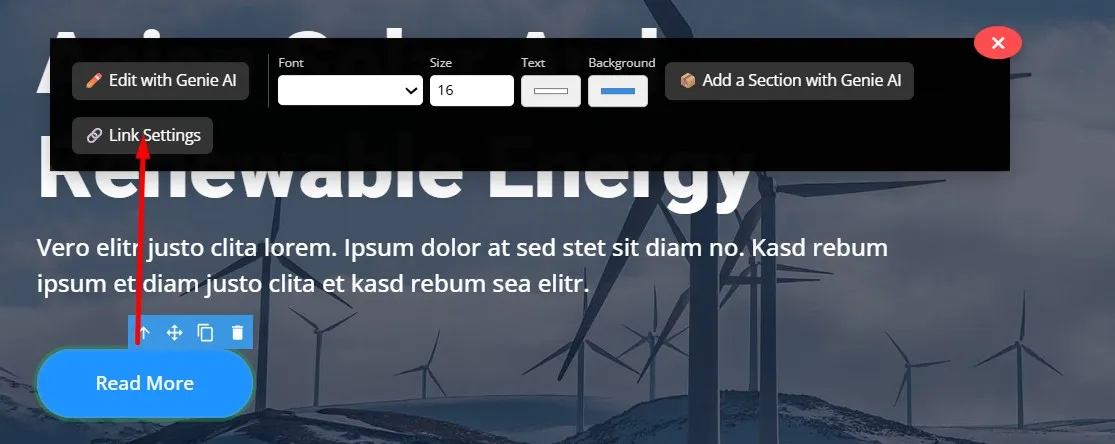
🔗 Step 5: Add a Hyperlink to the Button
To add a link to your button:
- Click on Link Settings
- A popup will appear called “Link (href)”
- Paste the URL you want the button to open
💾 Step 6: Save Your Changes
After customizing:
- Text color
- Background color
- Font style
- Button hyperlink
👉 Don’t forget to Save your changes.
🎉 Final Result
With just a few clicks, you can fully customize your button design.
These small UI improvements can greatly enhance readability and make your website look more professional.
If you want, I can also create video script, animated step-by-step, or infographic version of this guide.