Newsletter Dashboard & Menu Overview
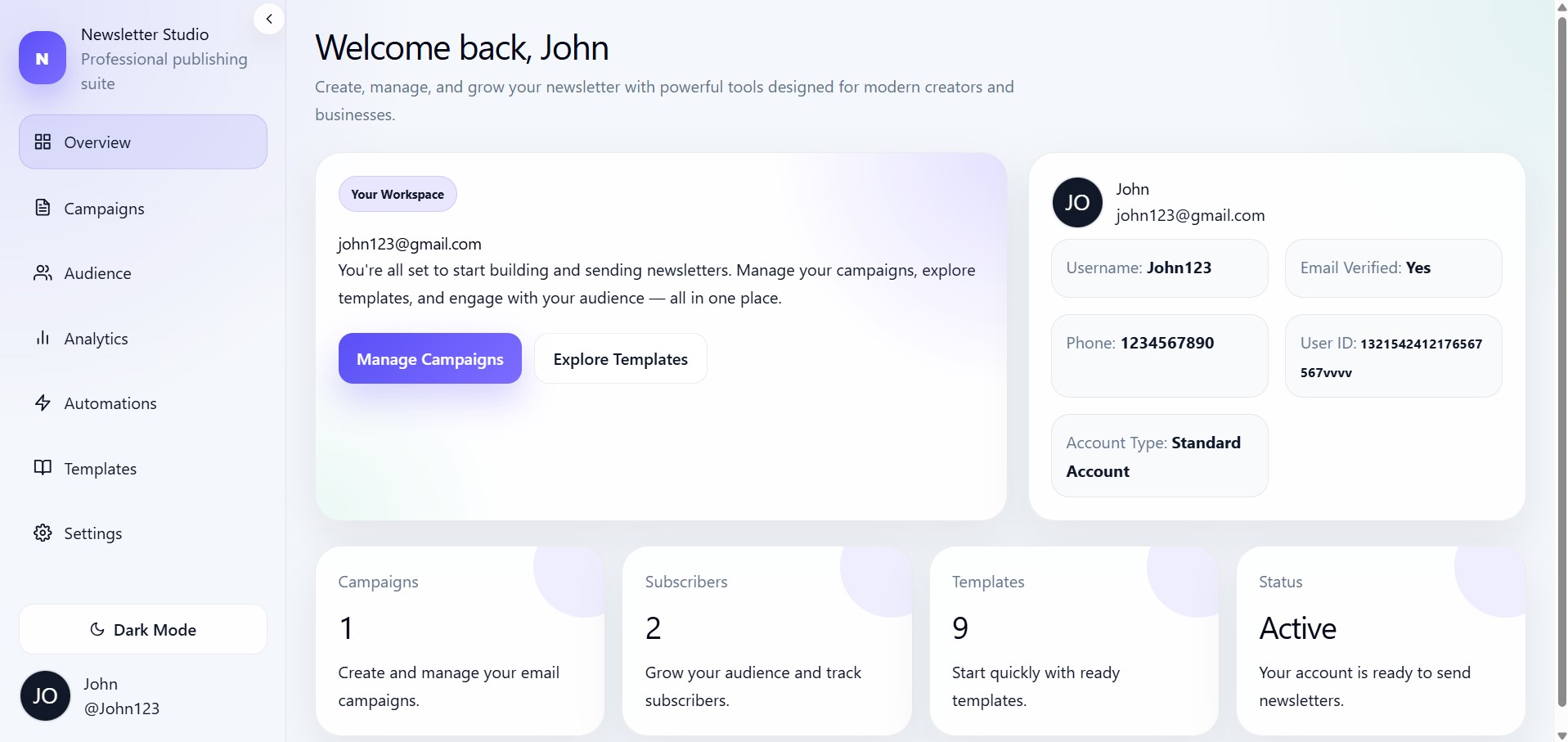
The Newsletter dashboard is the main workspace users see after their plan is activated. It is hosted separately at:
https://newsletter.cloudmysite.com
The dashboard is called Newsletter Studio and works as a professional publishing suite for managing newsletter campaigns, subscribers, analytics, automations, templates, and settings.
Dashboard loading flow
When a user arrives from the CloudMySite payment or free activation flow, the dashboard may receive a workspace id in the URL.
Example:
https://newsletter.cloudmysite.com?id=NEWSLETTER_ID
The dashboard then:
- Reads the newsletter id from the URL.
- Stores it as the newsletter dashboard id.
- Removes the id from the visible URL.
- Fetches newsletter product details.
- Syncs or creates the newsletter account.
- Stores the newsletter account id.
- Opens the dashboard workspace.
During this process, the user may see:
Preparing your workspace...
Dashboard layout
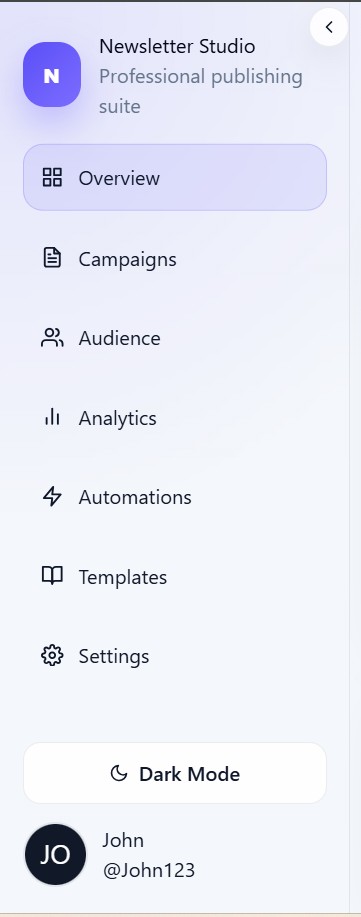
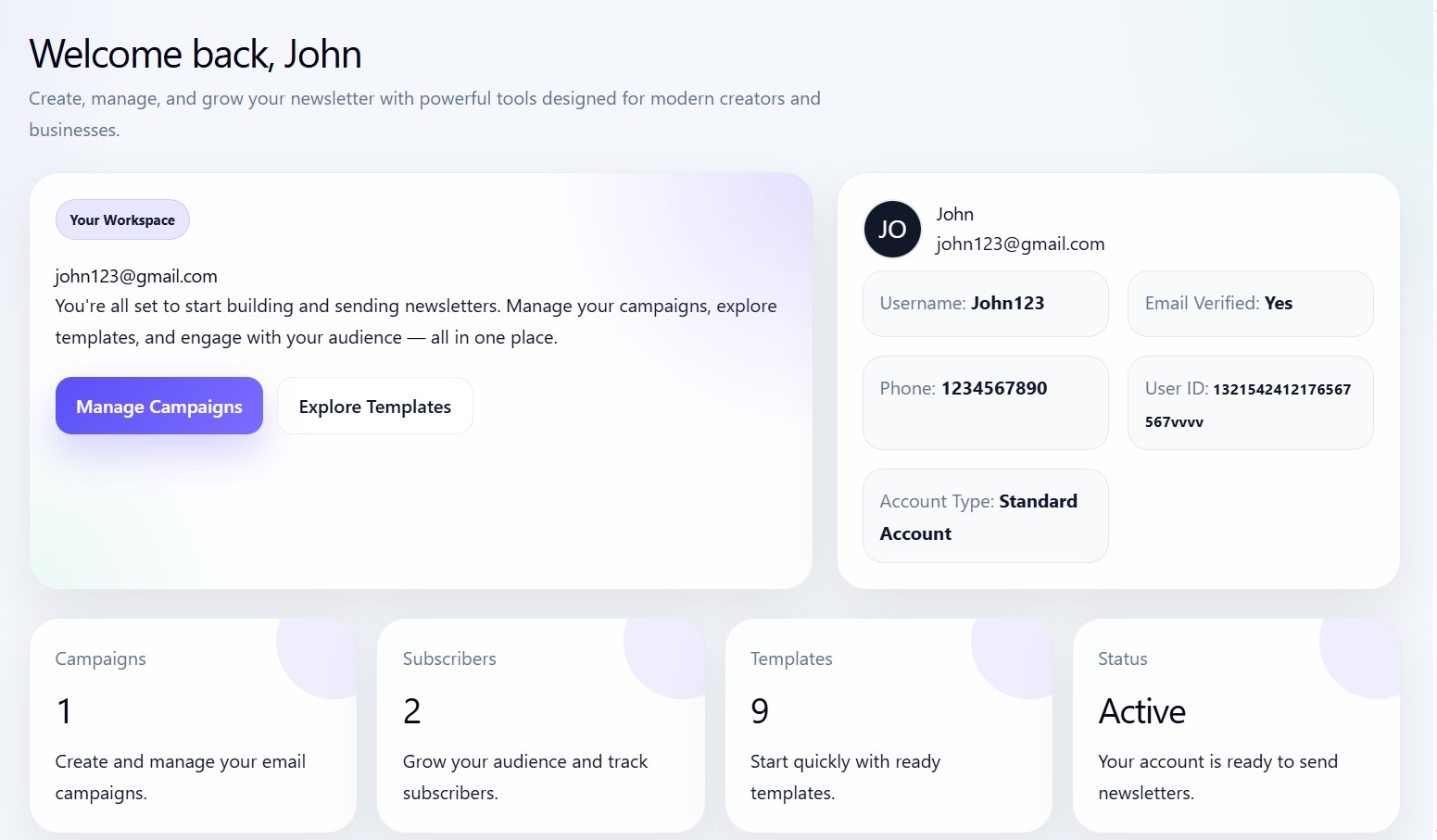

The dashboard contains:
- Left sidebar navigation
- Main content area
- Mobile menu toggle
- Light and dark mode switch
- User profile area
- Logout menu
- Collapsible sidebar
Sidebar menus
The main dashboard menus are:
Overview
The Overview page shows the starting workspace screen. It gives users a quick place to begin creating campaigns, managing audience, and checking newsletter status.
Campaigns
The Campaigns page is used to manage newsletter campaigns. Users can create a new campaign, edit an existing campaign, or review a campaign before sending.
Audience
The Audience page is used to manage newsletter subscribers and audience information.
Analytics
The Analytics page is used to review newsletter performance and understand campaign results.
Automations
The Automations page is used to create and edit automated newsletter workflows.
Templates
The Templates page allows users to choose prebuilt newsletter templates and start a new campaign from a selected design.
Settings
The Settings page is used to manage profile, workspace, and newsletter-related settings.
Campaign flow inside dashboard
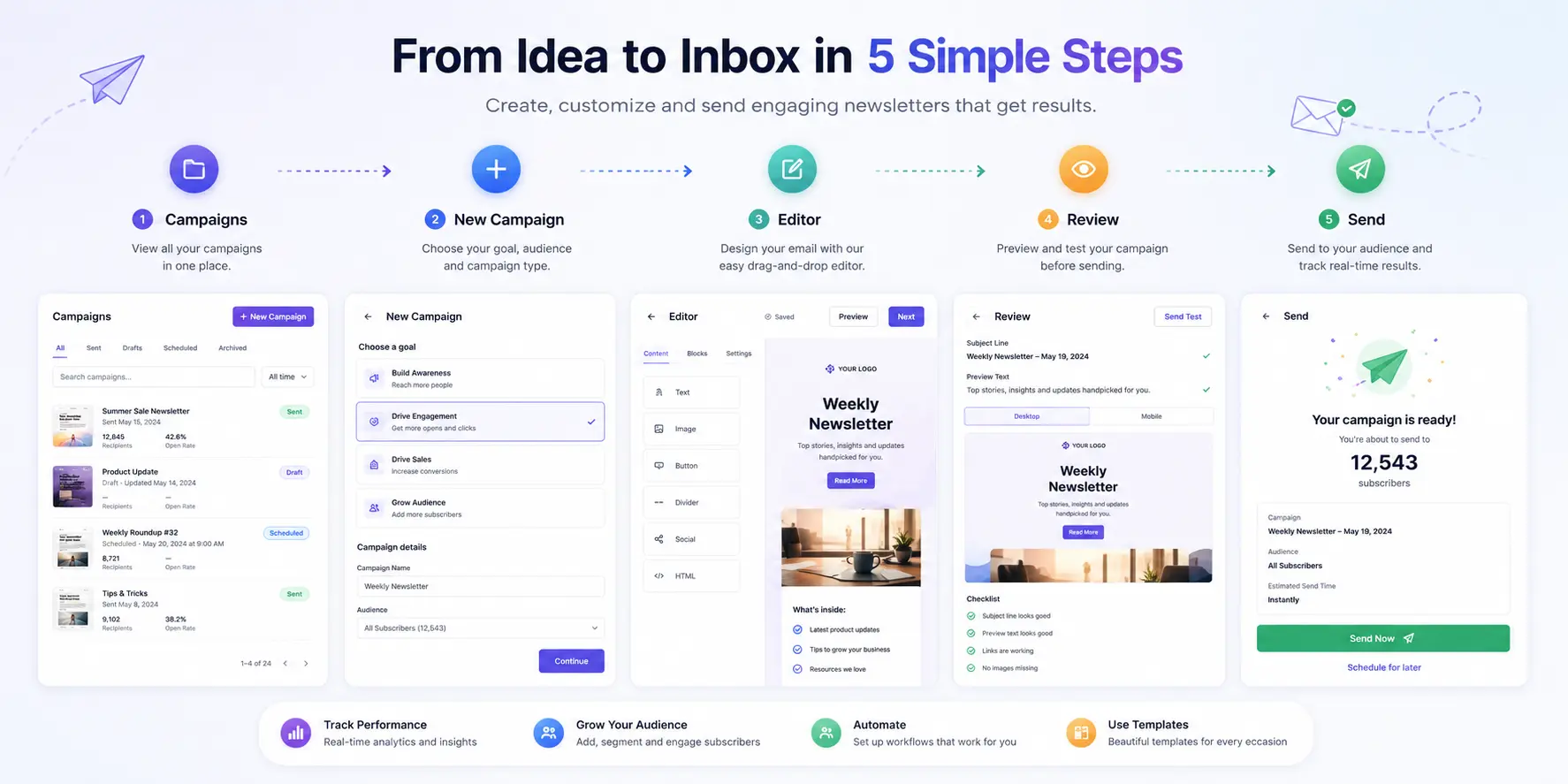
The campaign flow inside the dashboard works like this:
Campaigns
→ New Campaign
→ Campaign Editor
→ Campaign Review
→ Back to Campaigns after completion
If a user starts from Templates, the flow becomes:
Templates
→ Use Template
→ New Campaign
→ Campaign Editor
→ Campaign Review
Automation flow inside dashboard
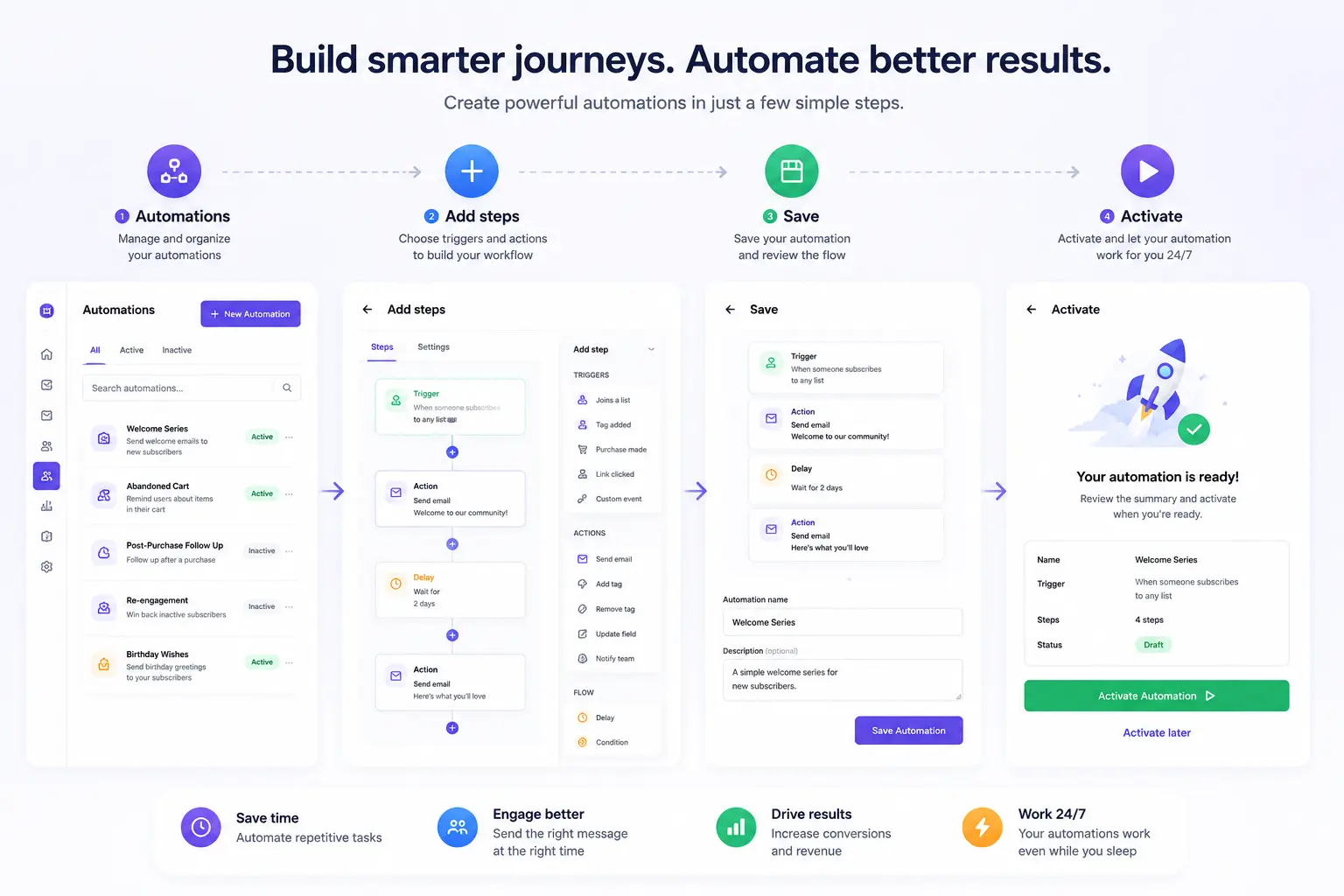
The automation flow works like this:
Automations
→ Select or create automation
→ Automation Builder
→ Back to Automations
User profile and logout
At the bottom of the sidebar, users can see their profile information. The profile section includes:
- Avatar
- Full name
- Username
- Logout option
Light and dark mode
The dashboard includes a theme toggle. Users can switch between:
- Light Mode
- Dark Mode
Mobile dashboard
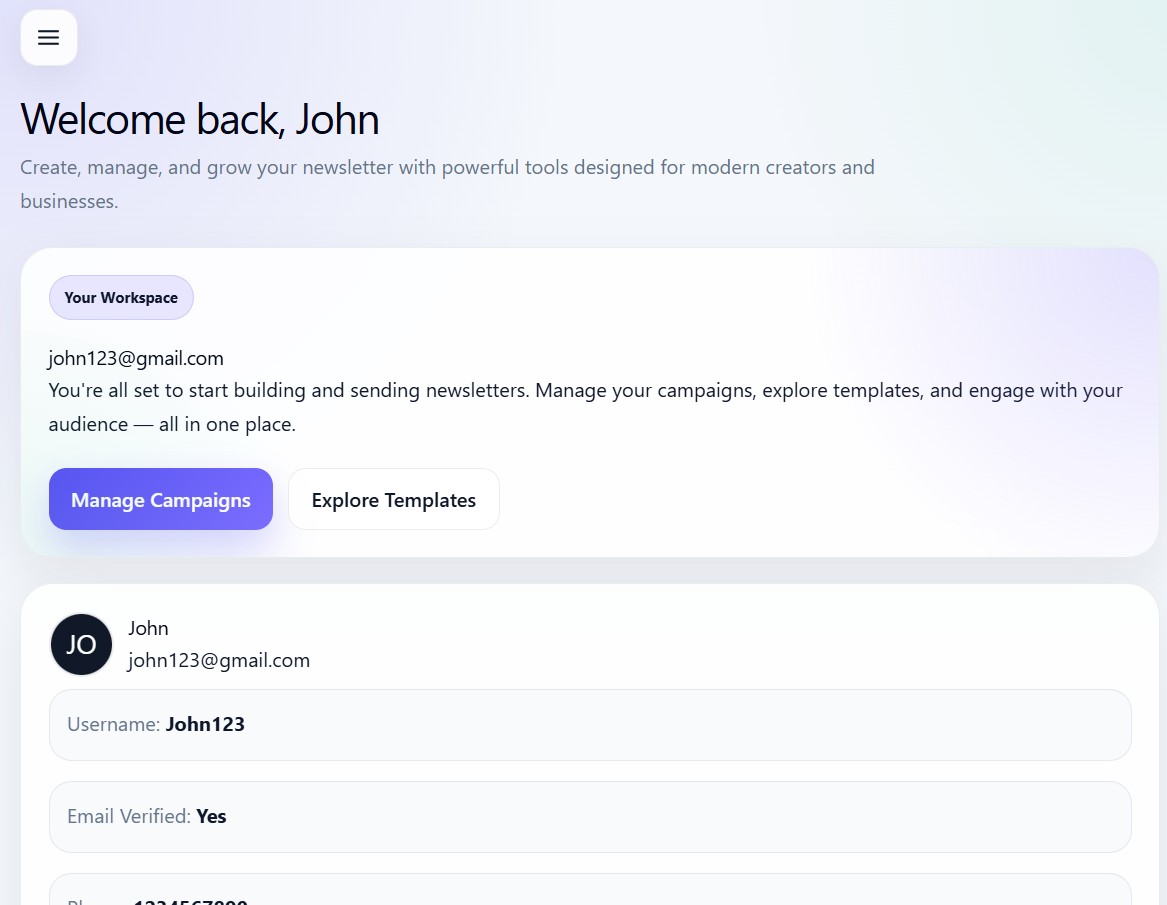
On smaller screens, the sidebar can be opened or closed using the mobile menu button.
Dashboard menu summary
| Menu | Purpose |
|---|---|
| Overview | Start page and quick workspace summary |
| Campaigns | Create, edit, and review campaigns |
| Audience | Manage subscribers |
| Analytics | View performance data |
| Automations | Build automated journeys |
| Templates | Start with ready-made designs |
| Settings | Manage profile and workspace settings |