Reply and Attach Files
After a ticket is created, you can continue the conversation by adding replies. You can also attach files such as screenshots, documents, PDFs, or text files.
When to reply to a ticket
Reply to an existing ticket when:
- Support asks for more information.
- You want to provide an update.
- The issue changed.
- You need to share a screenshot.
- You want to confirm that a suggested fix worked.
- You want to keep the ticket open after an inactivity warning.
Use the same ticket for the same issue so all details stay together.
Open the ticket conversation
- Go to the Support Center.
- Select Tickets.
- Click the ticket you want to reply to.
- The conversation opens in the main workspace.
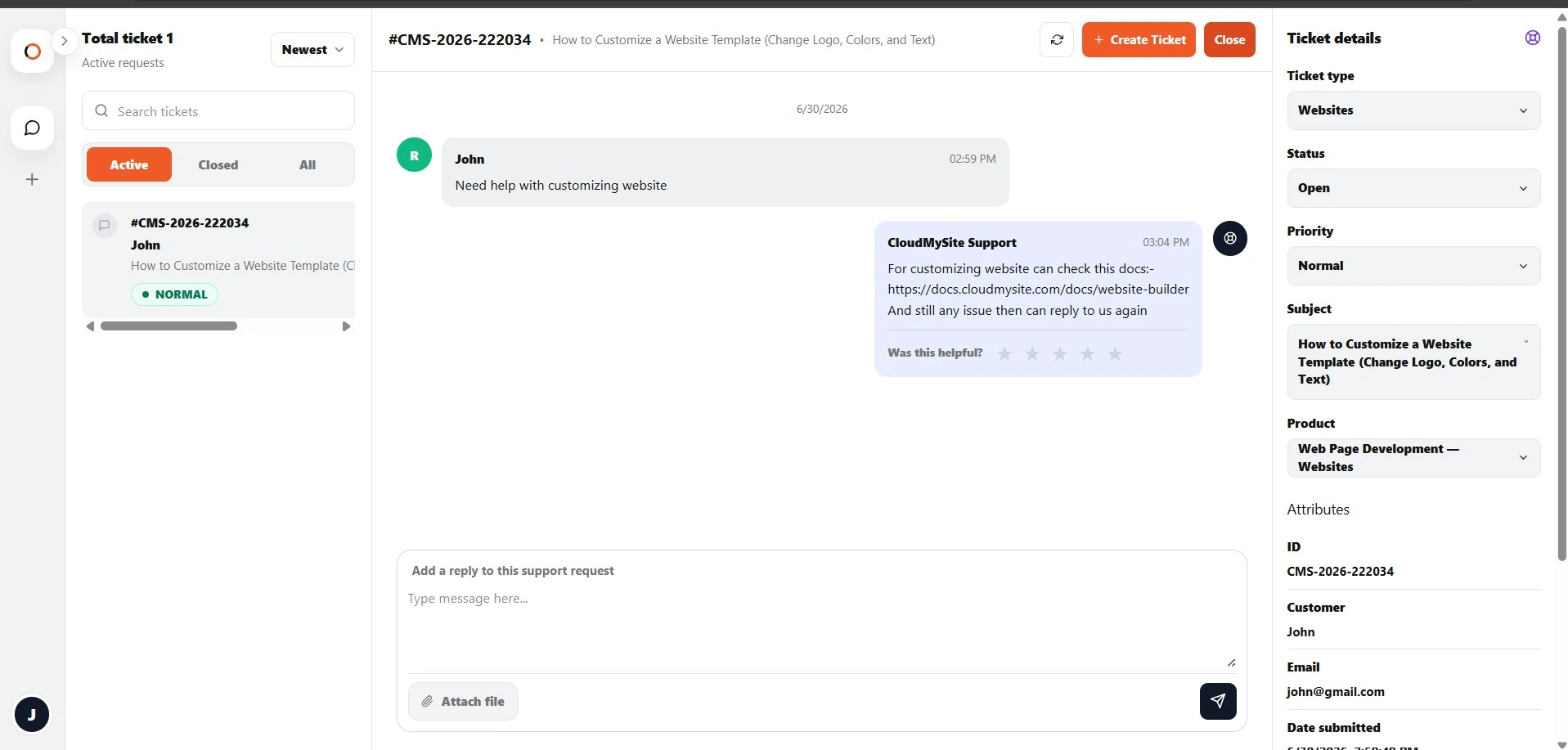
Add a reply
At the bottom of an open ticket, you will see the reply composer.
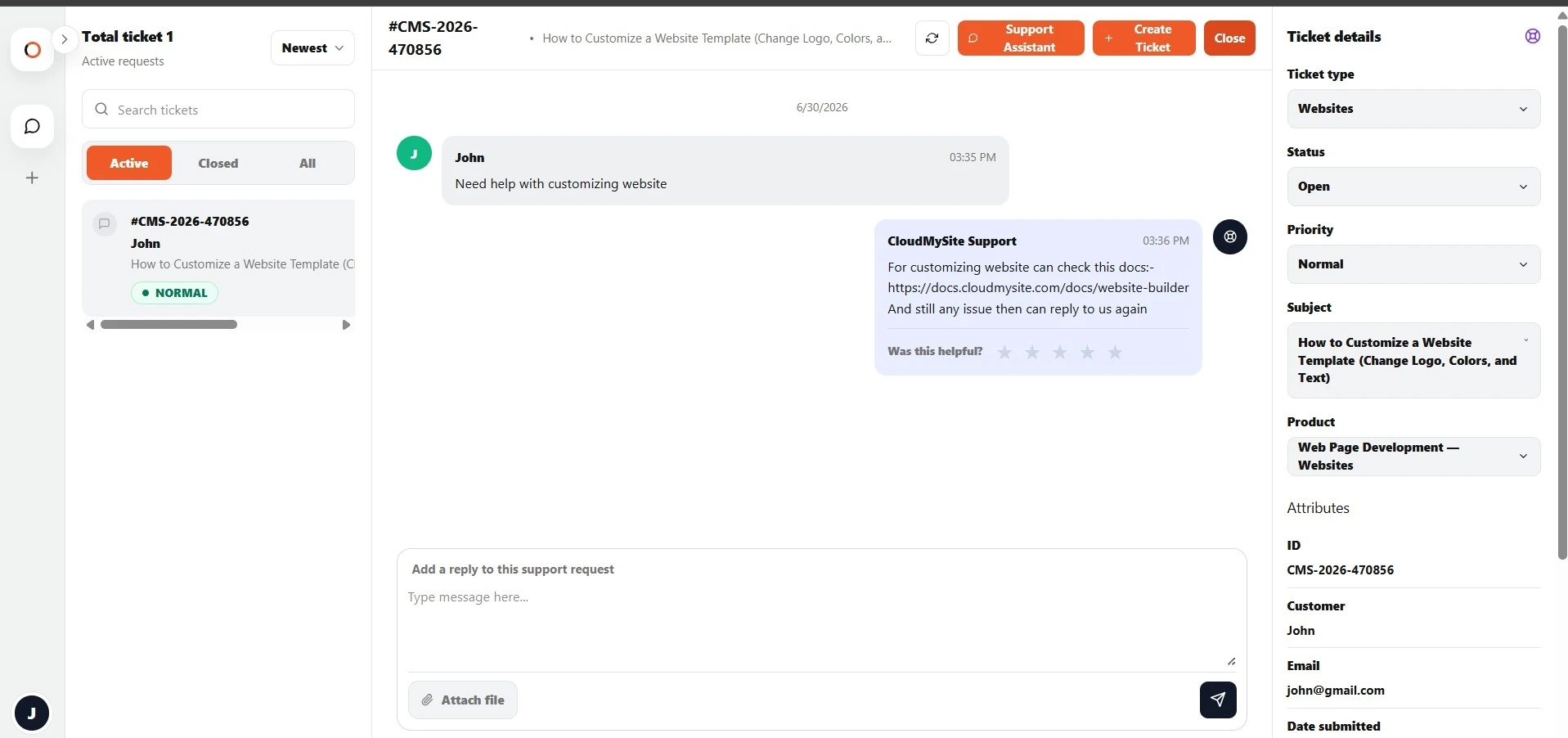
To send a reply:
- Type your message in the reply box.
- Add an attachment if needed.
- Click the send button.
Write a useful reply
A useful reply should be clear and specific.
Include:
- What you tried
- What changed
- Any error message
- Time the issue happened
- Links or domain names, if relevant
- Screenshot or file, if useful
Example:
I updated the DNS records about 4 hours ago, but the website still shows the old page. The domain is example.com. I attached a screenshot of the current DNS page.
Attach a file to a reply
Use Attach file to add a file to your reply.
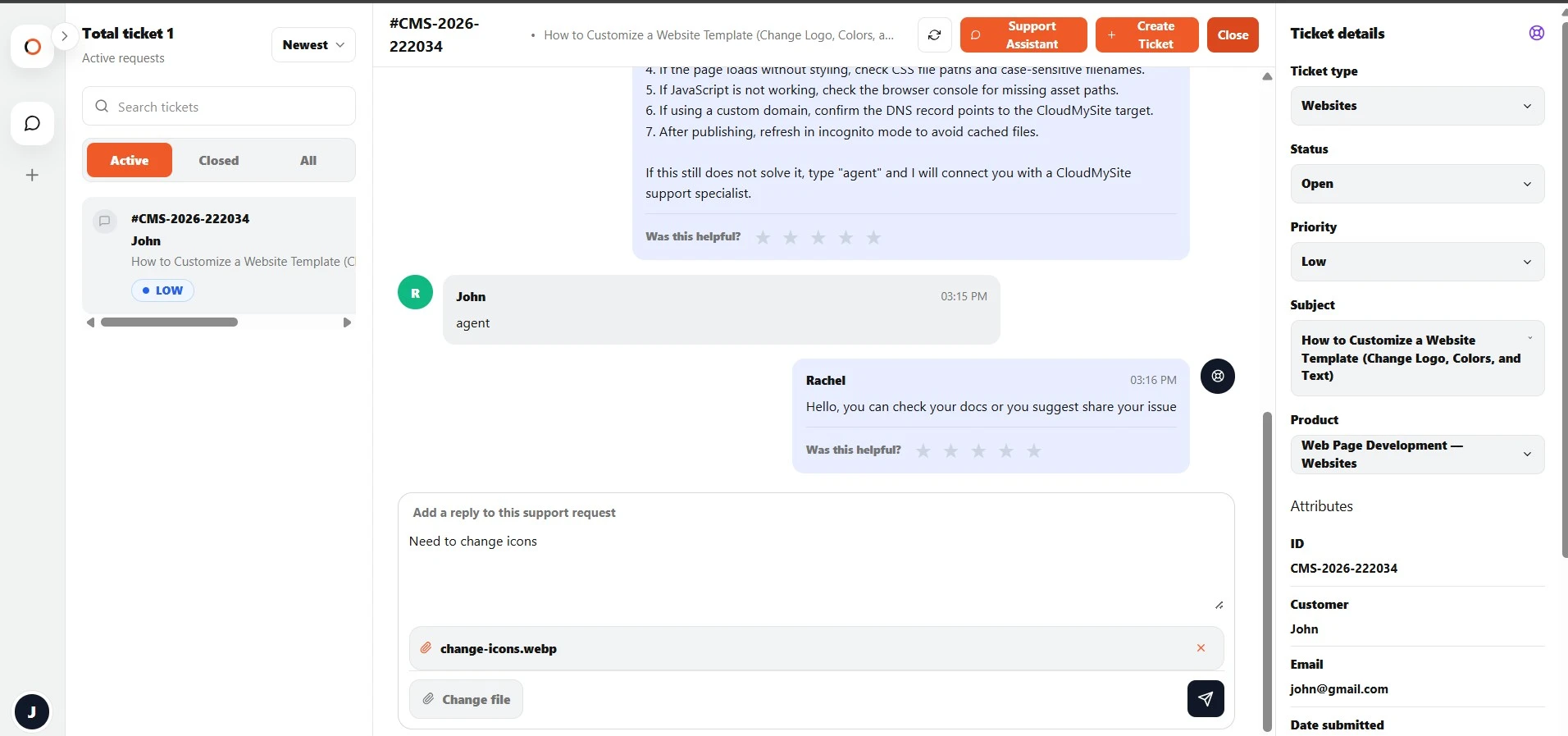
Steps:
- Open the ticket.
- Click Attach file in the reply area.
- Choose the file from your computer.
- Confirm that the selected file name appears.
- Type your reply.
- Click send.
Remove a selected file
If you selected the wrong file, click the remove icon next to the file name.
Then choose a different file or send the reply without an attachment.
Supported file types
The Support Center supports common file types used for troubleshooting.
JPG
JPEG
PNG
WEBP
GIF
TXT
PDF
DOC
DOCX
Use image files for screenshots and PDF/DOC/DOCX for documents.
File examples
| File type | Good use |
|---|---|
| JPG / PNG / WEBP / GIF | Screenshot of issue or error. |
| TXT | Logs, text output, DNS records, copied error messages. |
| Documents, invoices, exported reports. | |
| DOC / DOCX | Written instructions or project documents. |
Attachment preview
When a ticket has attachments, they appear in the ticket details panel.
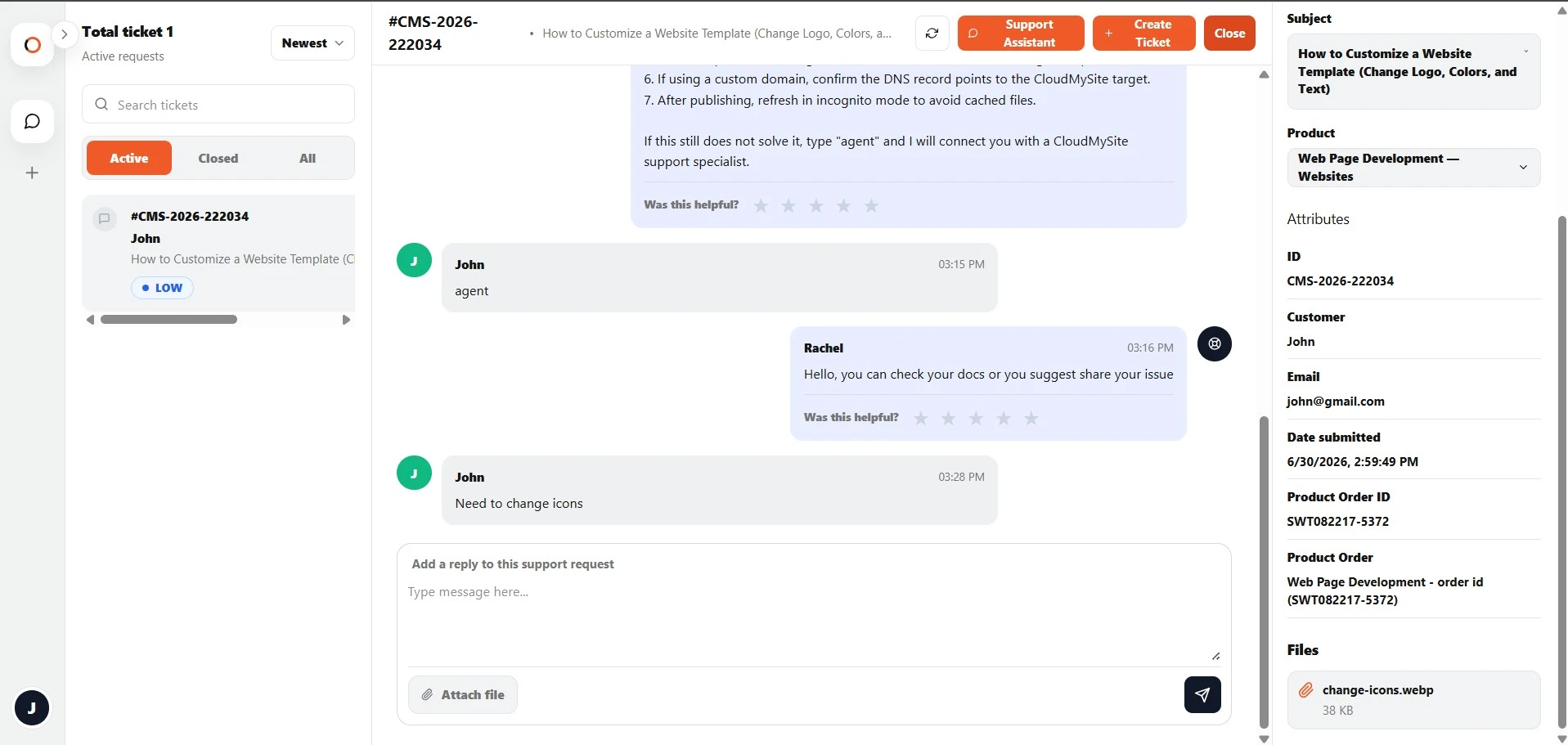
Depending on the file type, you may be able to preview it directly.
Images, PDFs, and text files may open in a preview window.
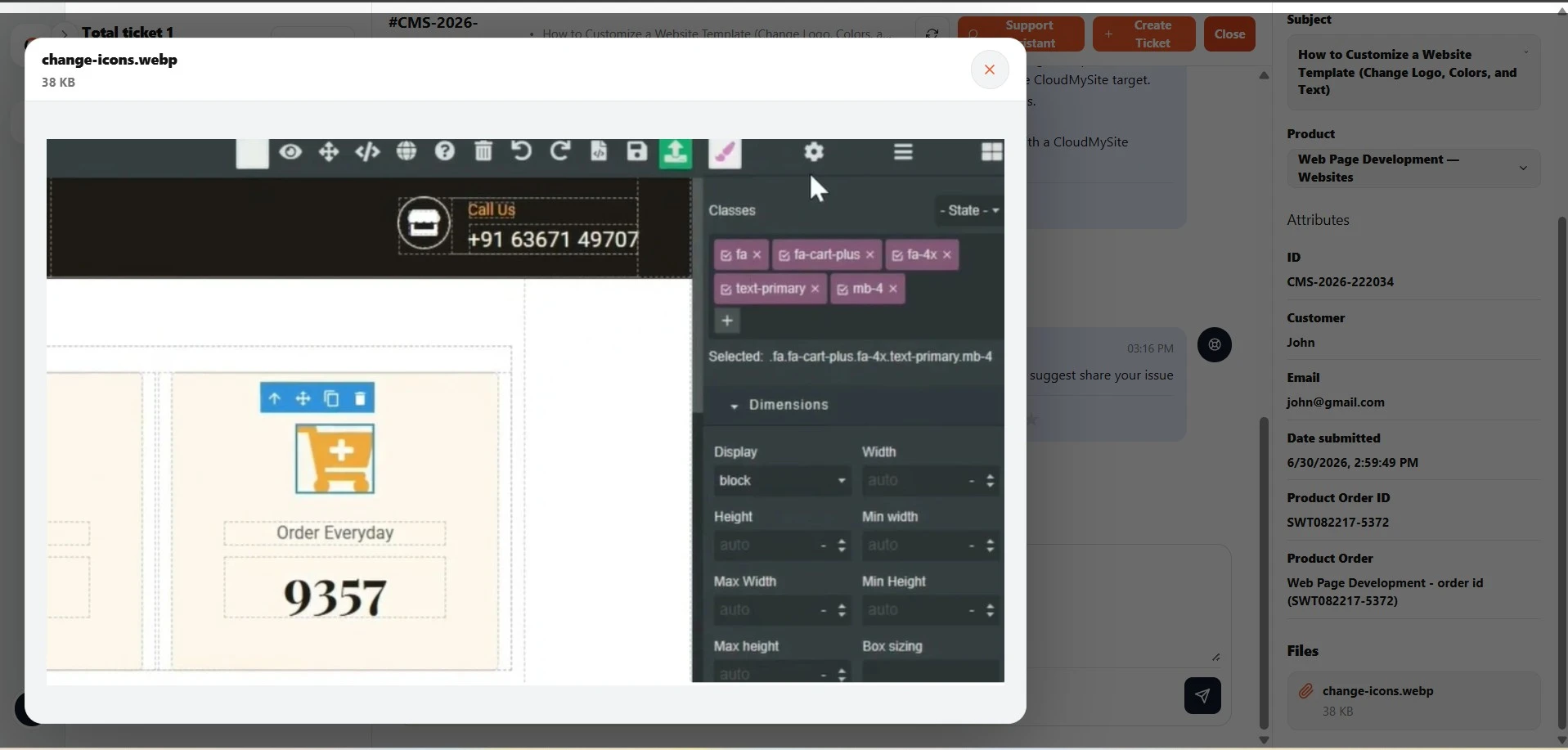
Word documents may need to be downloaded because most browsers do not preview DOC or DOCX files directly.
Replying to closed tickets
Closed tickets cannot receive new replies.
If the ticket is closed, the reply box will not be available.
If you still need help:
- Create a new ticket.
- Mention the previous ticket number.
- Explain what still needs attention.
System messages
You may see system messages in the conversation.
Examples:
- Inactivity warning
- Automatic closure notice
- Ticket status updates
If you receive an inactivity warning and still need help, reply to the ticket to keep it active.
Rating support replies
Some support replies may show a helpfulness rating option.
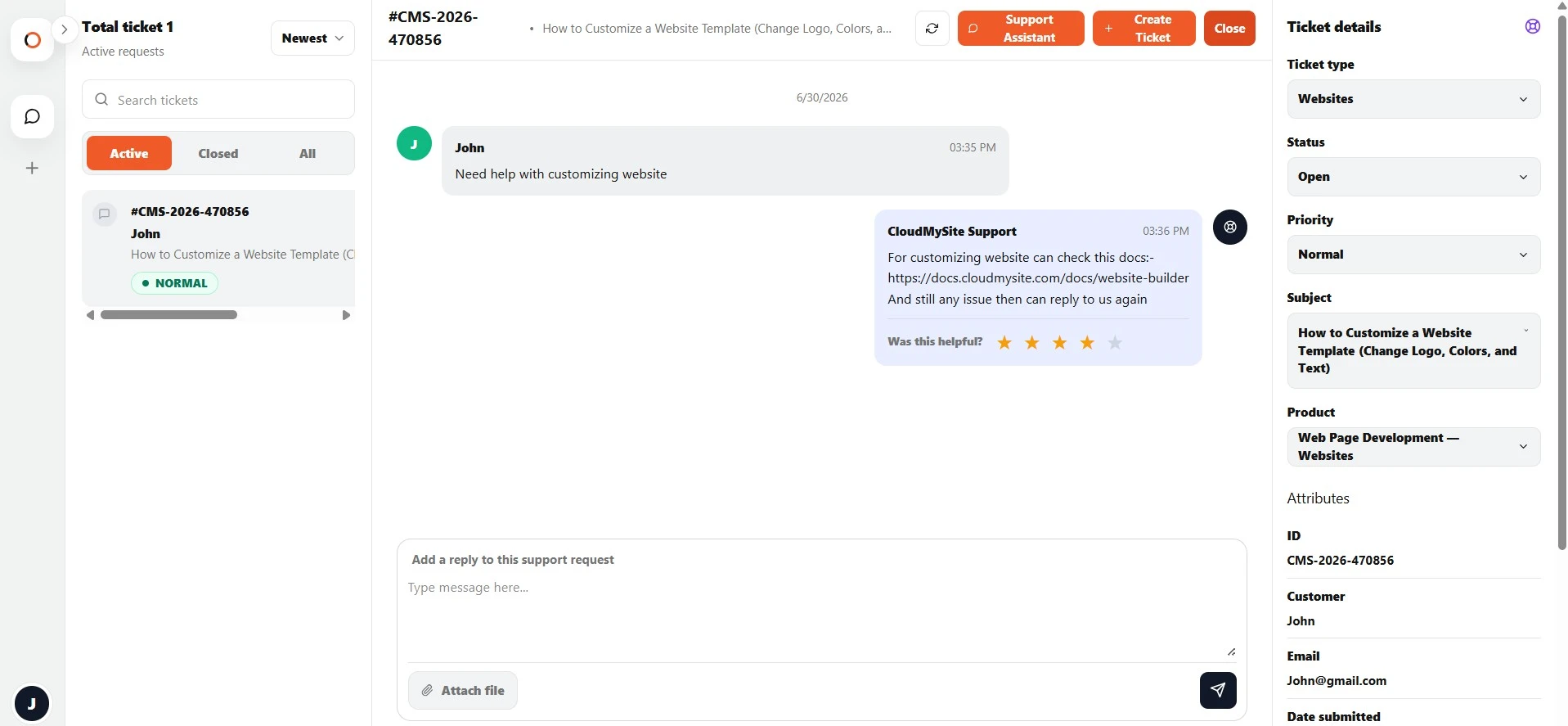
You can select a star rating to let CloudMySite know whether the reply helped.
This feedback helps improve support quality.
Best practices for attachments
- Attach only files related to the issue.
- Do not upload sensitive passwords.
- Crop screenshots to show the relevant area.
- Include full error messages when possible.
- Use a PDF or text file for long logs.
- Keep the file name clear, such as
domain-dns-screenshot.png.
Troubleshooting attachments
If the file does not upload:
- Check that the file type is supported.
- Try renaming the file with a simple name.
- Confirm the file is not empty.
- Try a smaller screenshot or PDF.
- Submit the reply without the file and mention that you had trouble attaching it.