CloudMySite Genie — Getting Started
CloudMySite Genie lets you describe your idea in plain English (or any language), then turns it into a complete website you can edit visually. No coding required. When you’re ready, attach a domain, publish to a fast global network (Content Delivery Network, CDN), and view analytics — all inside one store.
:::tip Who is this for? Entrepreneurs, creators, small businesses, and teams who want a professional website quickly, without learning web design or code. :::
What you’ll need
- A CloudMySite account (free to start).
- Your idea in one or two sentences (e.g., “Modern site for a local bakery with menu, online orders, and reviews”).
- Optional: logo, brand colors, and a few photos.
How Genie Works (At a Glance)
- Type your idea — Genie understands your business, tone, and must‑have sections.
- Instant website — You get a full layout with pages, headings, and placeholder images.
- Make it yours — Edit everything with drag‑and‑drop or keep prompting to add/change content.
- Go live — Attach a domain and publish. Analytics start recording visitors automatically.
Quick Start (5 Steps)
- Five Steps
- Optional Demo Flow
-
Describe your site
Example prompt: “Modern bakery website with warm colors, a hero image, a menu grid with prices, testimonials, and an ‘Order Now’ button.”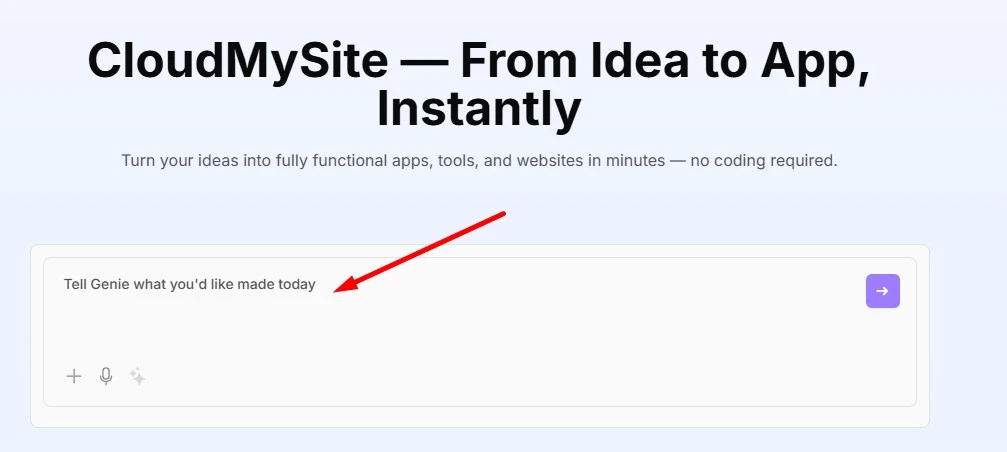
-
Generate
Click Generate with Genie. In a few seconds, your homepage and starter pages appear.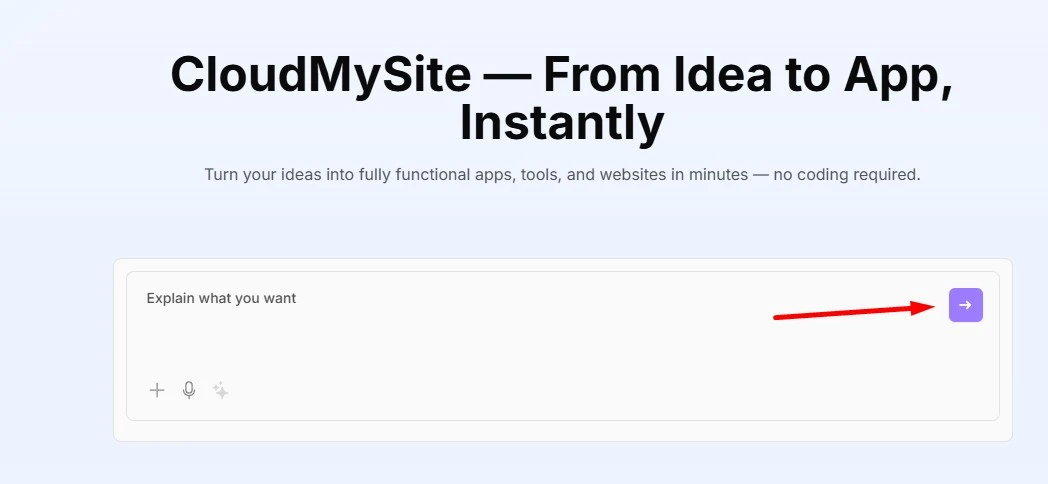
-
Customize
- Drag to reorder sections (e.g., move Testimonials above the Menu).
- Select text to Rewrite, Shorten, or Expand via inline prompts.
- Change colors and fonts in Theme.
-
Add content
- Type: “Add a 3‑step ‘How it works’ section with pastel icons.”
- Or: “Create a ‘Catering’ page with three pricing tiers and an inquiry form.”
-
Publish & attach domain
Click Publish. Choose Buy/Connect Domain, follow the steps, and your site goes live with HTTPS (secure connection) on the global CDN.
- Start with your one‑line prompt.
- Review the first version (hero, features, testimonials).
- Drag sections into the order you like.
- Prompt to add a “How it works” section.
- Create a “Contact” or “Pricing” page by prompt.
- Change the primary color and upload your logo (global restyle).
- Publish, then open your live link and check analytics.
Build with Prompts
Prompts let you work in plain language. Try these:
Modern website for a neighborhood bakery in warm tones, hero with a large product photo, a 3x2 menu grid with prices, testimonials, and a sticky “Order Now” button.
Add a 3‑step “How it works” section with pastel icons that matches my current theme.
Create a “Catering” page with three pricing tiers and an inquiry form.
Rewrite this heading in a friendly tone. Keep it under 10 words.
You can prompt in short phrases (“Add FAQ with 6 Q&As”) or full sentences. Genie adapts to your style.
Customize with Drag‑and‑Drop
- Reorder sections by dragging the handle; blocks snap neatly into place.
- Edit text inline. Use the prompt menu to rewrite or shorten.
- Replace images from your library or upload new ones.
- Theme & brand: set brand colors, fonts, and button styles; the whole site updates.
- Undo/redo anytime — changes are safe to try.
:::tip Keep it simple Start with the version Genie creates. Tweak only what matters for your visitors: clear headline, strong call‑to‑action, real photos. :::
Pages & Navigation
Add pages without hunting for templates:
- Prompt: “Create a ‘Services’ page with three cards and a contact button.”
- Navigation updates automatically.
- Reorder or rename pages from the Pages panel.
Images & Media
- Replace any image: click the image → Replace → choose from your uploads or stock.
- Use consistent styles (e.g., soft lighting, close‑ups) for a polished look.
- Add galleries or video sections by prompt: “Add an 8‑image gallery with captions.”
Forms & Contact
- Add a contact form via prompt or the blocks library.
- Set the email where you want messages delivered.
- Test once before publishing.
Domains (Buy or Connect)
You can keep everything in one place:
- Buy a new domain in the store, or Connect one you already own.
- Genie guides you through the steps (Domain Name System, DNS, is handled for you when buying through CloudMySite).
- Your site is secured with HTTPS (Hypertext Transfer Protocol Secure).
:::note Already have a domain elsewhere? You can point your domain to CloudMySite with simple DNS record changes. We’ll show you exactly what to copy. :::
Publish & Share
- Click Publish to deploy globally on our CDN (Content Delivery Network).
- Open your live link and share it.
- Changes you make later can be published again with one click.
Analytics (What to Watch)
- Visitors & top pages — see what people read most.
- Traffic sources — where visitors come from.
- Performance — page load times and regions.
- Improvements — try alternate headlines or hero images and compare.
:::tip Weekly habit Spend five minutes each week reviewing analytics, then make one small improvement (clearer headline, shorter form, stronger button text). :::
Best Practices (Quick Checklist)
- One clear goal per page (book, order, contact, subscribe).
- Real photos beat stock — even phone photos.
- Short copy wins — headings under 10 words, 1–2 sentence paragraphs.
- Visible action — a button above the fold (“Order now”, “Get a quote”).
- Trust — include testimonials, logos, or quick facts.
FAQ
Do I need design skills?
No. Genie creates a clean layout; you can tweak colors and fonts easily.
Can I change just one section?
Yes. Regenerate a single block or add a new one by prompt.
Will publishing overwrite my site?
Publishing updates the live version with your latest edits. You can always edit again and republish.
What if I already have a domain?
Connect it with DNS changes; we’ll guide you.
Troubleshooting
- My logo looks small → Use a higher‑resolution image (ideally SVG or a large PNG).
- Form not sending → Check the form destination email and try a test message.
- Domain not working → If you connected an external domain, DNS can take time to update (usually minutes, occasionally up to 24 hours).
- Page looks different on mobile → Use the responsive preview and adjust spacing or font sizes if needed.
Next Steps
- Generate your first site with Genie.
- Replace a few images and polish the headlines.
- Attach your domain and publish.
- Check analytics after a few days and keep improving.
Ready to start? Head to CloudMySite.com → Genie → “Describe your idea”.