Form Settings — Spam Protection
Spam protection helps reduce unwanted submissions from bots and fake traffic.
Depending on your setup, you may see options such as Honeypot, built-in Turnstile, or custom CAPTCHA providers.
Open Spam Protection Setting
- Open Forms.
- Choose your plan.
- Click 🛠️ Form Settings.
- Locate the Spam Protection section.
Honeypot
Honeypot is a simple anti-spam option that helps block many automated bot submissions.
It is lightweight, easy to use, and does not usually affect real visitors.
Honeypot is available on all plans.
To use it, the setting must be enabled in the form settings.
Honeypot Example

Turnstile
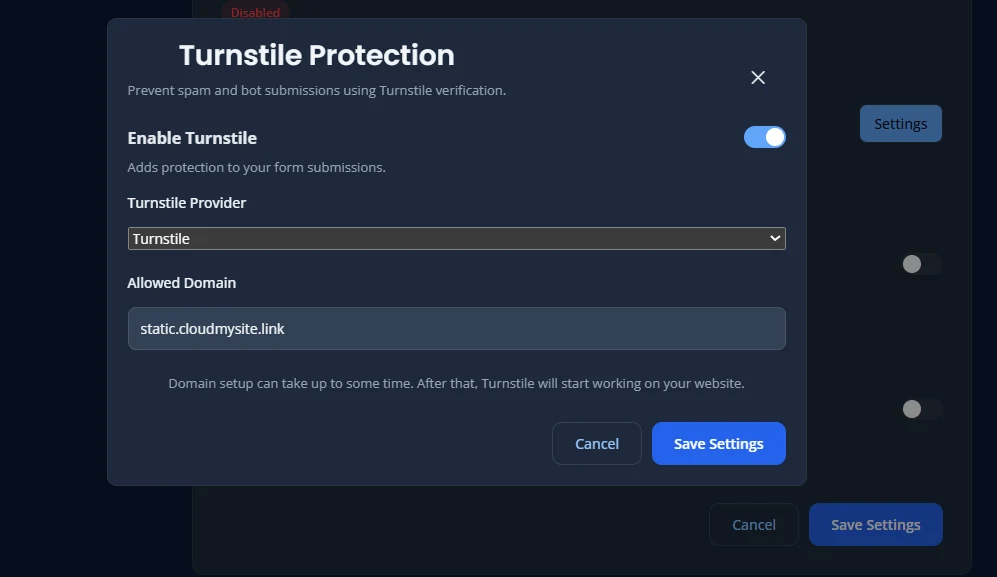
Turnstile adds an extra verification step to help protect your form from abuse.
It is helpful when your form receives repeated spam or when you want stronger protection than a simple hidden field.
The configured domain should match the real website domain where the form is used.
Turnstile is available on all plans.
Built In Turnstile Example
Turnstile Testing (Local Development)
When Turnstile is enabled and CAPTCHA mode is set to Turnstile, it usually requires a deployed domain to work.
For local development, you can use Cloudflare’s test credentials:
Site Key: 1x00000000000000000000AA Secret Key: 1x0000000000000000000000000000000AA these keys allow testing on localhost no domain configuration is required do not use these keys in production
This helps you test spam protection locally before deployment.
If Turnstile Does Not Save
Check the following:
- the domain is entered
- the domain format is correct
- the domain is the real website domain where the form is used
Custom CAPTCHA Options
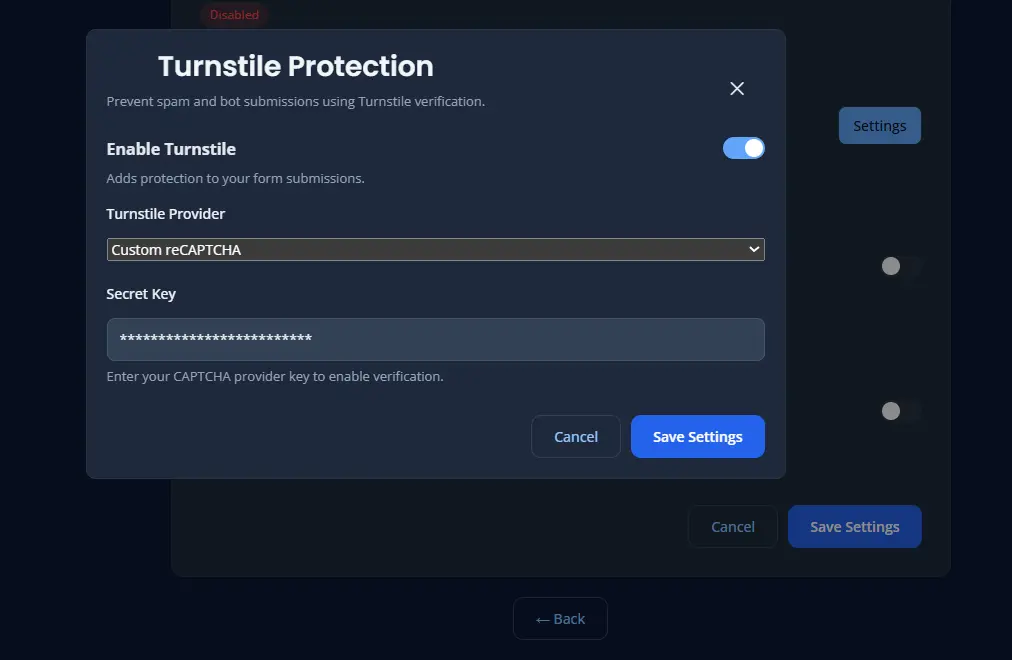
If you enable spam protection, you may also see custom CAPTCHA choices such as:
- Custom reCAPTCHA
- Custom hCaptcha
- Custom Turnstile
Use these options when you already have your own CAPTCHA account and want to use your own keys instead of the default setup.
Important: Secret Key Is Required
When using any custom CAPTCHA option, adding the secret key is important.
Make sure you save the correct values for:
- secret key
Best Practices
- use Honeypot for lightweight protection
- use Turnstile when spam is heavier
- always configure the correct domain
- save both site key and secret key for custom CAPTCHA
Save Changes
After updating spam protection:
- Click Save Settings.
- Submit a test entry.
- Confirm the protection works correctly on the live site.