Form Settings — Recipient Email
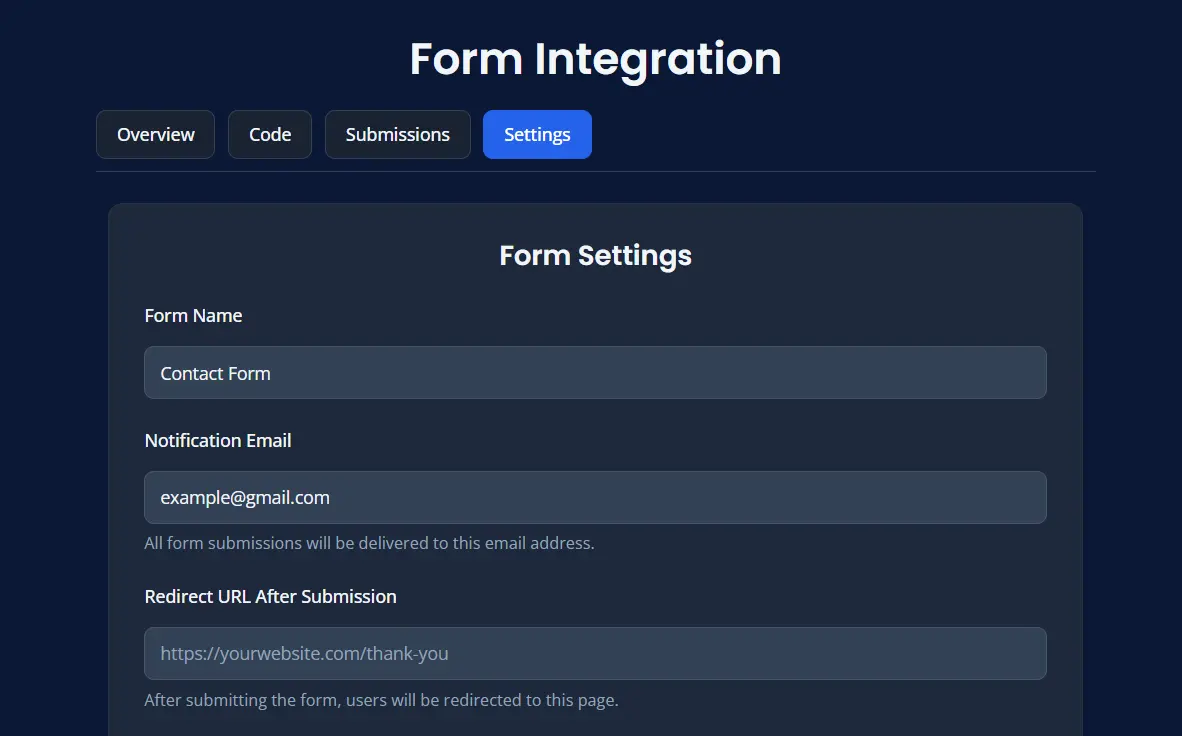
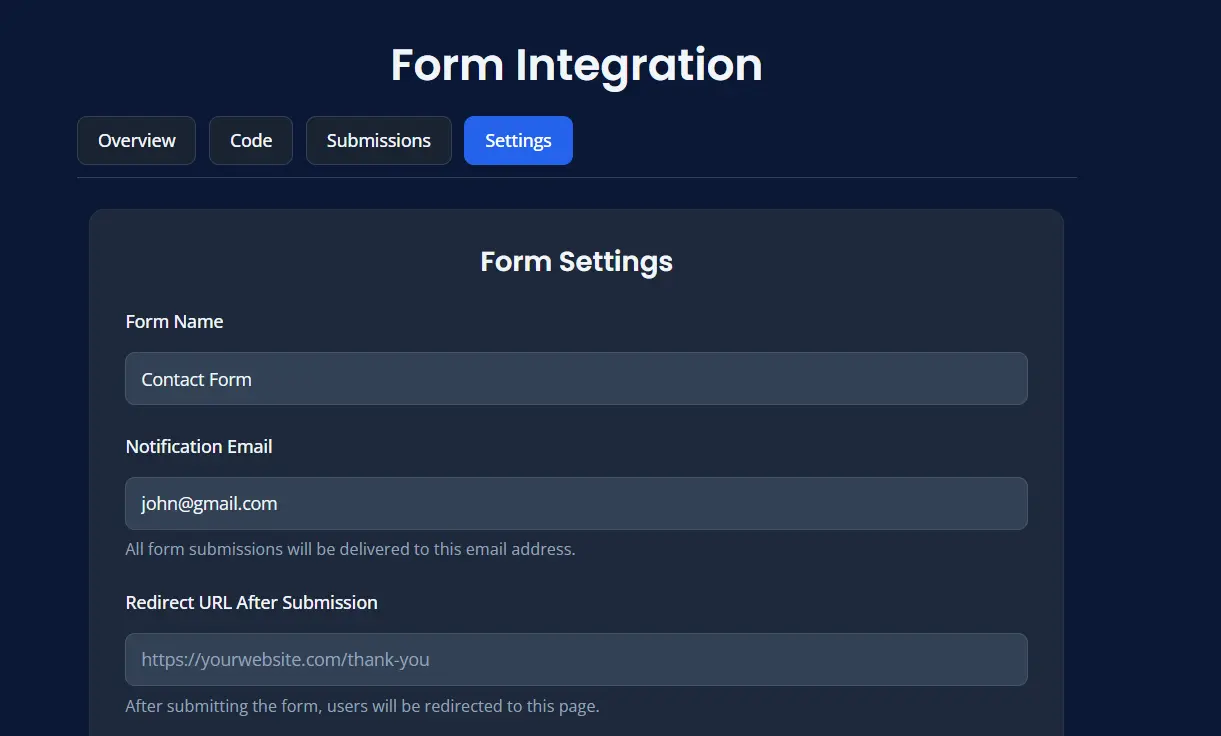
The Recipient Email is the email address that receives new form submissions.
You can use this to route enquiries to the right person or team, such as sales, support, or a shared inbox.
You can update this later whenever you want submissions to go to a different email address.
Always test the form after changing the recipient email so you can confirm submissions are being delivered correctly.
Open Recipient Email Setting
- Open Forms.
- Choose your plan.
- Click 🛠️ Form Settings.
- Locate the Recipient Email field.
Why Recipient Email Matters
This setting ensures submissions go to the correct mailbox.
Common examples include:
- [email protected]
- [email protected]
- [email protected]
- a shared team inbox
Before Changing Recipient Email
After Changing Recipient Email
Best Practices
- use a valid email address
- use a monitored inbox
- test after every change
- update the address when team ownership changes
Save Changes
After updating the recipient email:
- Click Save Settings.
- Submit a test form entry.
- Confirm the email is received correctly.