Upgrade, Cancel, and Help
This page explains how to upgrade a plan, request cancellation, and get help when something is not working as expected.
Upgrade a Plan
Upgrade when:
- you need more forms
- you need features not included in your current plan
- your current plan limit has been reached
Upgrade Steps
- Open Forms.
- Find the plan you want to upgrade.
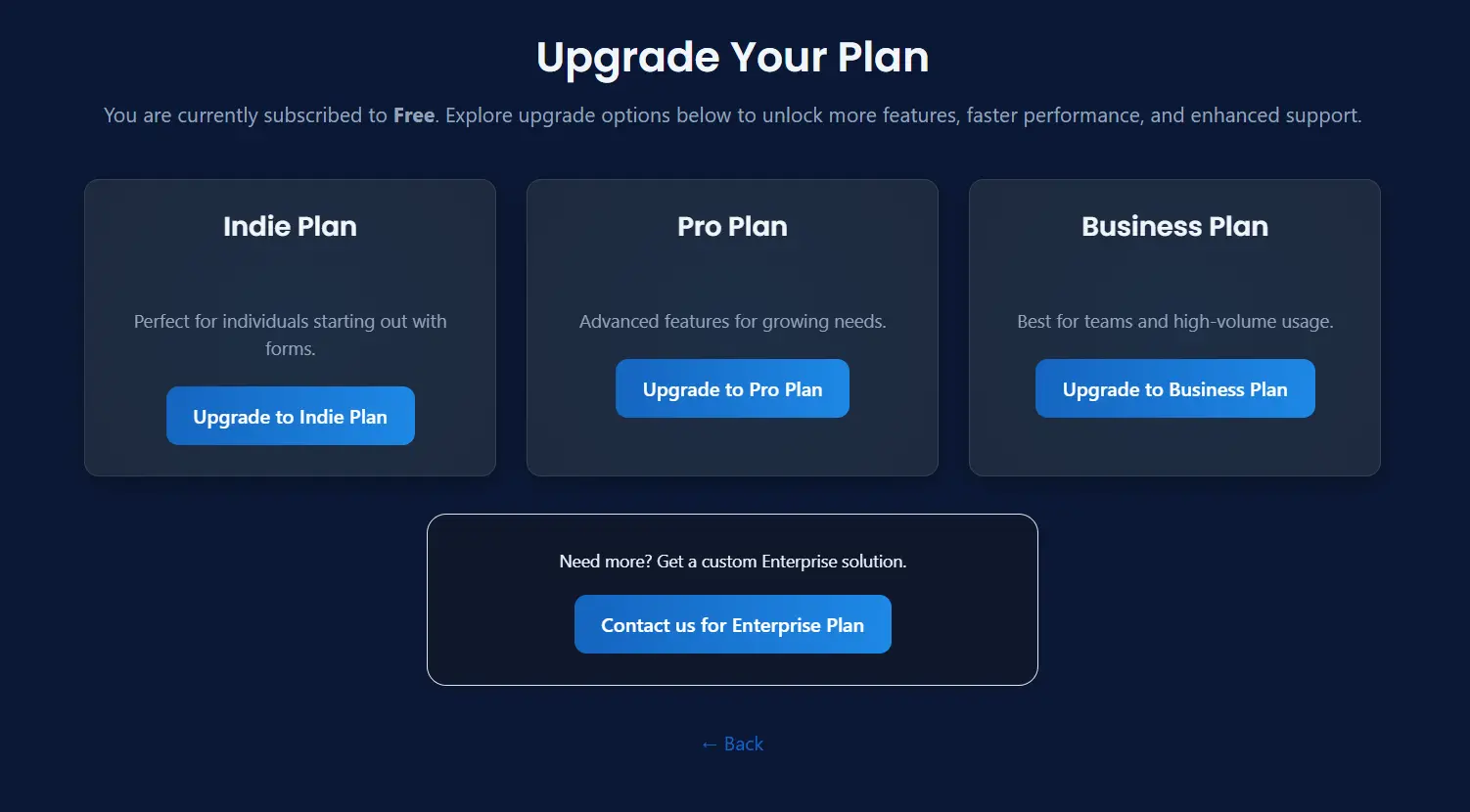
- Click Upgrade Subscription ⬆️.
- Choose the new plan.
- Complete the upgrade flow.
Upgrade Example
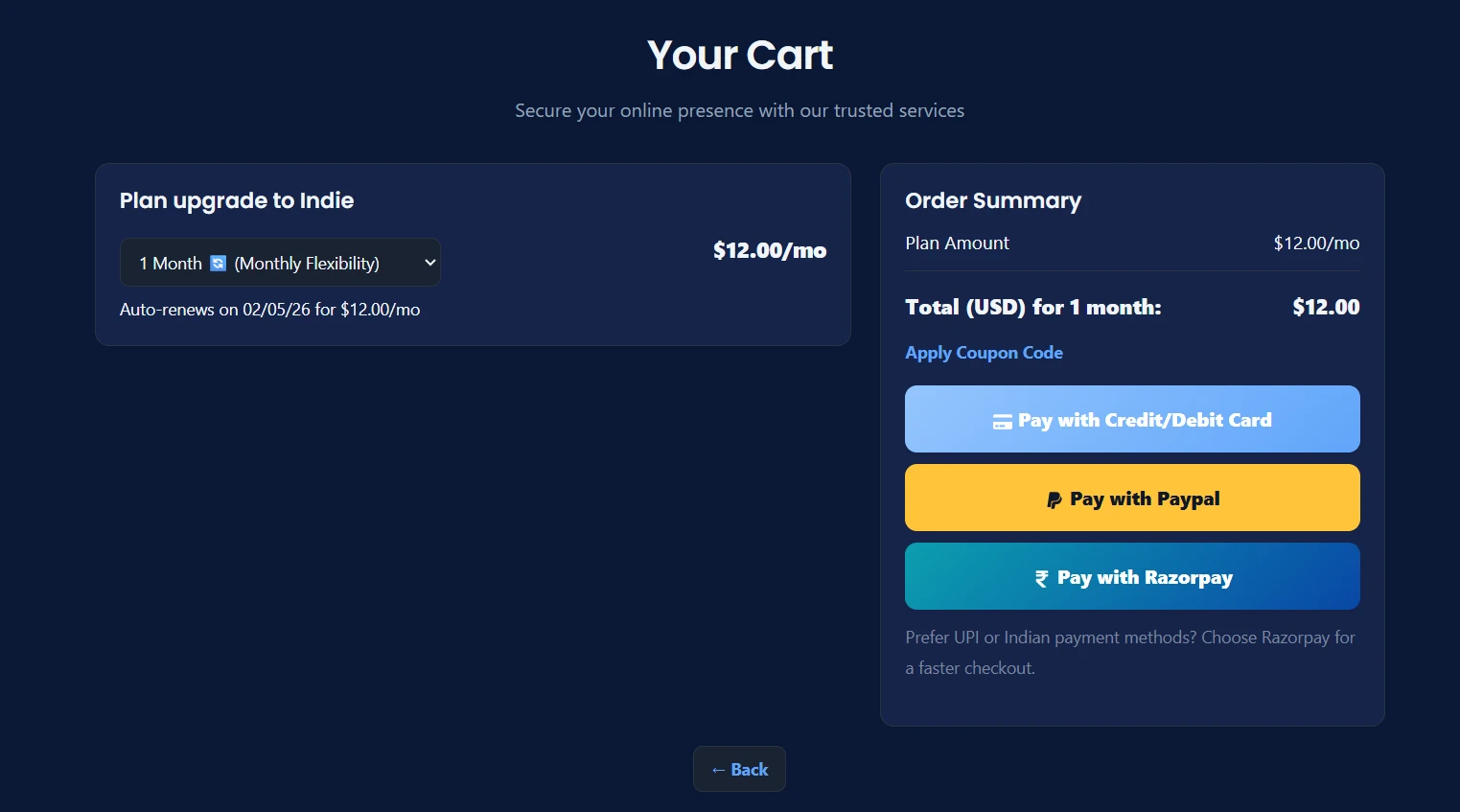
Upgrade Payment
After choosing a new plan, the system will open the payment or checkout flow.
Review the selected plan and complete payment to continue.
Upgrade Payment Example
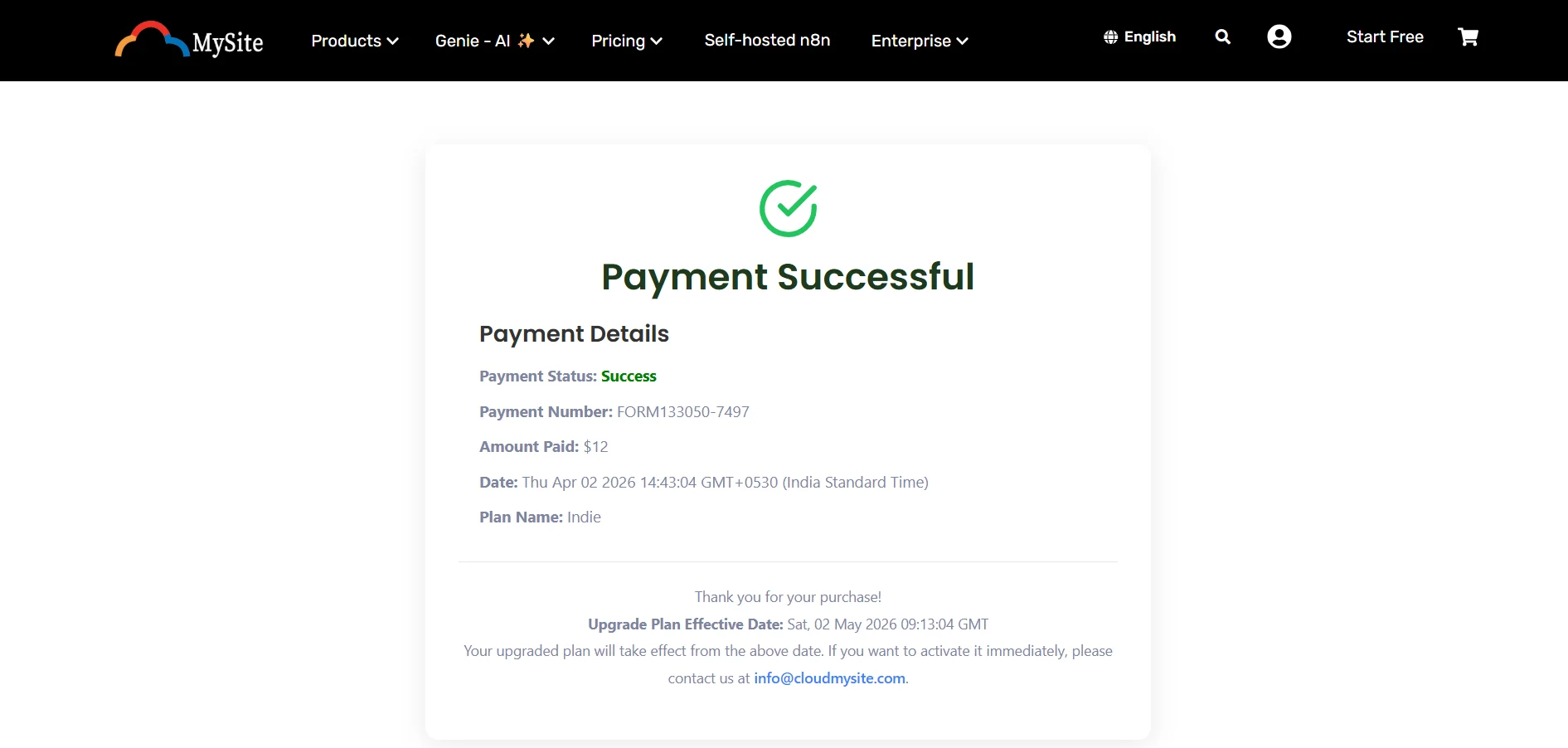
Upgrade Success
After payment is completed, the system may show a success message or confirmation screen.
This confirms that the upgrade has been processed.
Upgrade Success Example
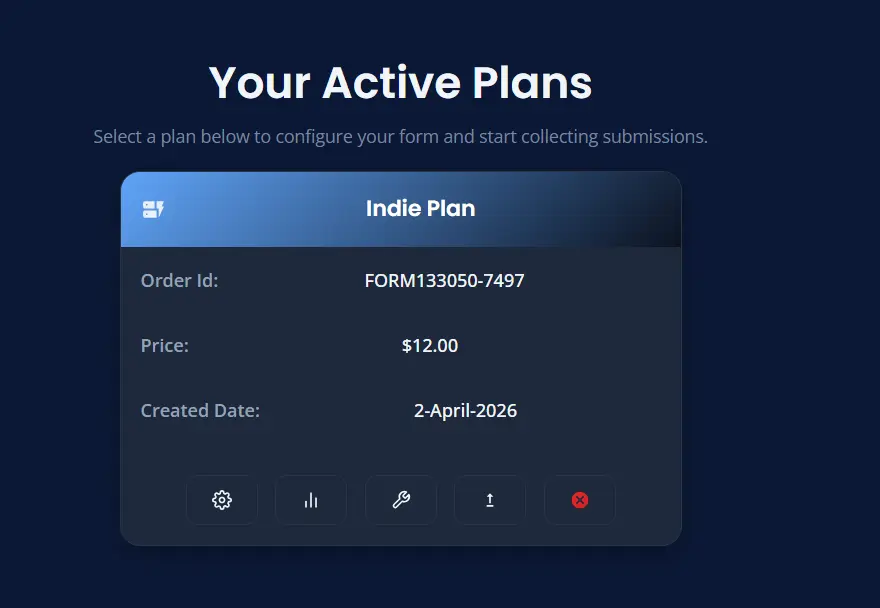
How the Plan Looks After Upgrade
After the upgrade is complete, return to Forms to confirm the new plan details.
You may see updated limits, features, or plan labels.
Upgraded Plan Example
When Upgrade Is Helpful
Upgrade may help when you want:
- more forms
- more advanced settings
- paid-only features
- extra integrations
Cancel a Plan
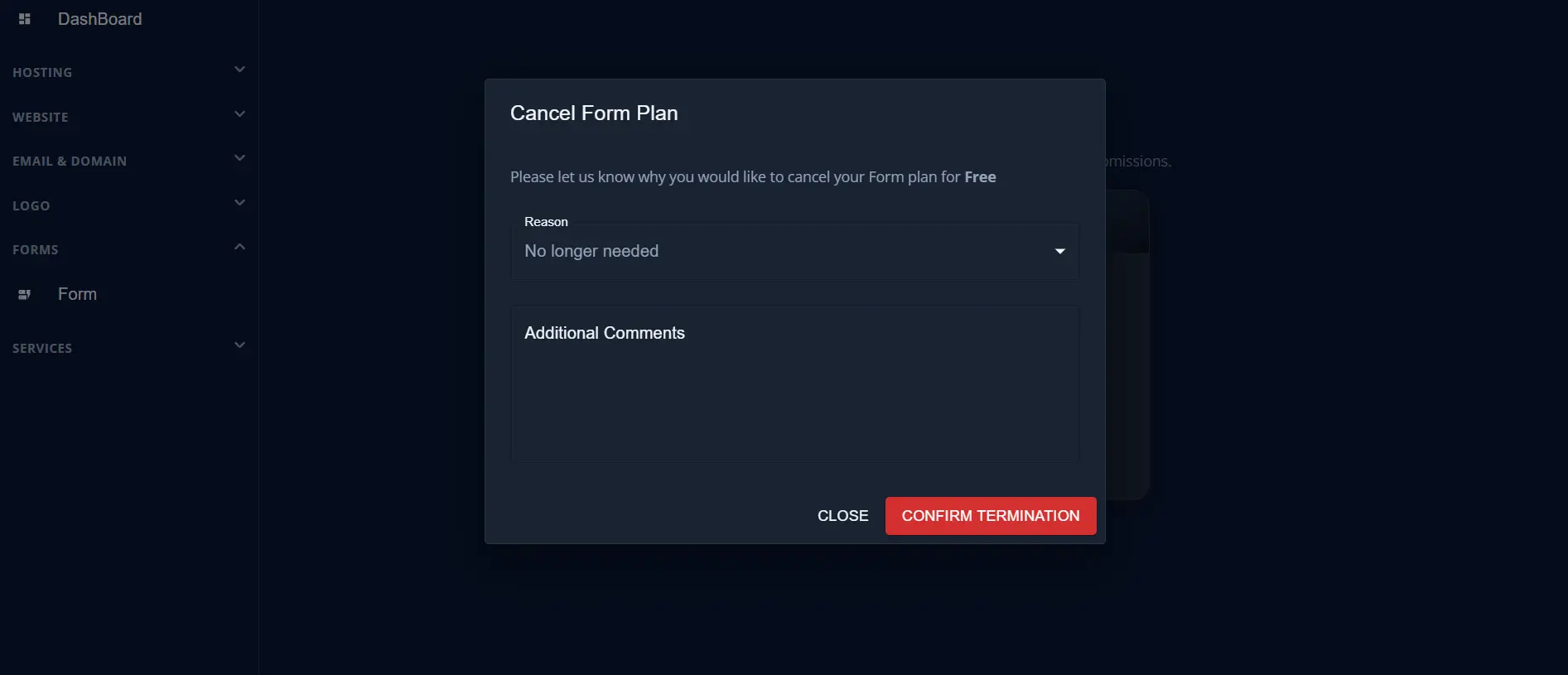
If you no longer need the plan, you can send a cancellation request.
Cancel Steps
- Open Forms.
- Find the plan you want to stop.
- Click Cancel Subscription ❌.
- Choose a reason.
- Add comments if needed.
- Submit the request.
Cancel Request Form Example
What Happens After Cancellation Request
After submission, the system may show a success message and sometimes a support case ID.
Keep that case ID if it appears.
Common Reasons People Cancel
Examples include:
- no longer needed
- too expensive
- performance issues
- switching provider
- other reason
Best Way to Get Help
You can also get help from the support area.
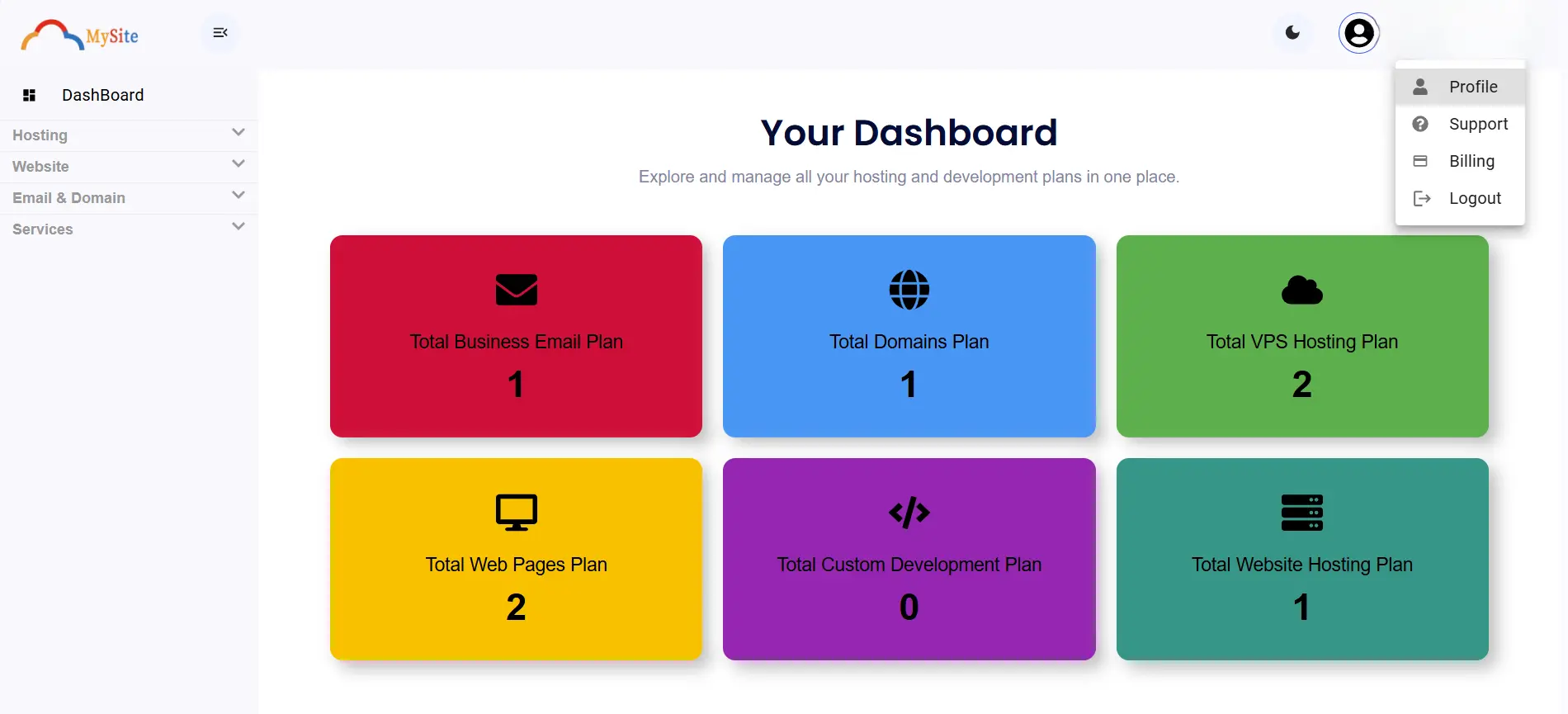
In many cases, your name and email appear in the lower-left corner of the dashboard. From there, you can click Support and open a case.
Open Support Example
Open Case Example
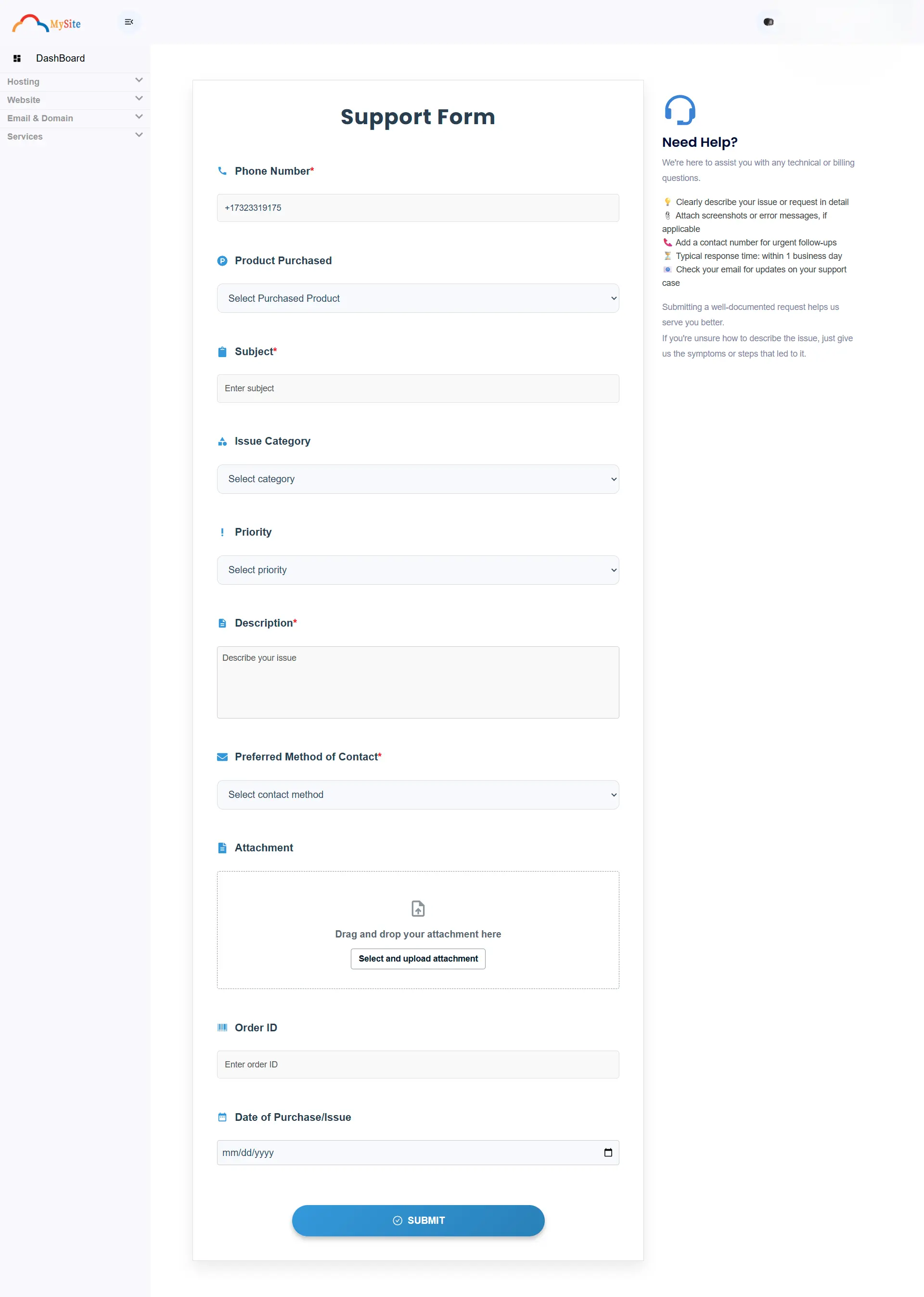
Before asking support, collect these details:
- plan name
- form name
- what page the form is on
- what you expected to happen
- what actually happened
- screenshots if available
This helps the issue get resolved faster.
Troubleshooting
I do not see any active plan
Check:
- your purchase completed successfully
- you are signed in with the correct account
- the plan is active or in trial
I cannot create another form
Check:
- your current plan limit
- whether you already used all allowed forms
- whether you need to upgrade
Manage Form shows a warning
This often means the plan does not yet have a configured form.
Fix:
- Create the form first.
- Return to manage it.
My form is not receiving submissions
Check:
- the endpoint is correct
- the website form is connected to that endpoint
- each field has a name
- the form is on a live page
- settings were saved
My settings are not saving
Check:
- required fields are filled
- the domain is valid if using Turnstile
- Google Sheets setup uses the correct web app URL
- your plan supports the feature you turned on