Form Plans
Your Form plan is the starting point for creating and managing forms.
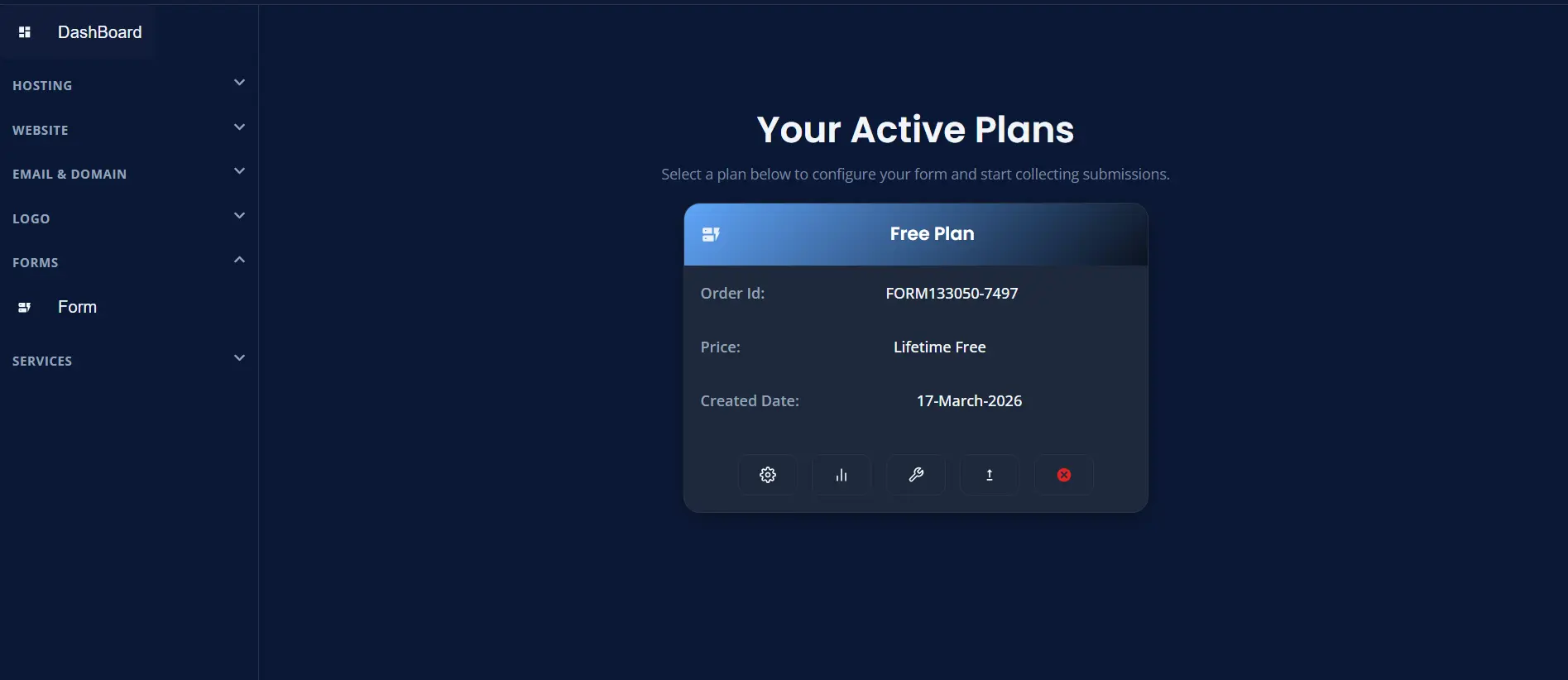
Open Your Plans
- Sign in to your dashboard.
- From the left menu, open Forms.
- Click Form.
- Review the list of active plans shown on the page.
What Plan Cards Show
Each plan card may show:
- plan name
- order ID
- price
- created date
This helps you quickly identify which plan you want to use.
Actions Available on a Plan
Each plan card includes action icons at the bottom.
⚙️ Configure Form
Use Configure Form to create a new form under that plan.
This is usually the first action you take after the plan becomes active.
📊 Form Analytics
Use Form Analytics to review submission activity and overall form usage.
This helps you understand how your form is performing over time.
🛠️ Form Settings
Use Form Settings to update how the form behaves after it has been created.
You can return here later to adjust configuration details as needed.
⬆️ Upgrade Subscription
Use Upgrade Subscription to move from your current plan to a higher plan.
This is useful when you need more features, higher limits, or additional form capability.
❌ Cancel Subscription
Use Cancel Subscription when you no longer want to continue that plan.
This sends a cancellation request for the selected subscription.
When to Use Configure Form
Use Configure Form when:
- you are creating your first form
- your plan allows more forms and you want another one
- you have not yet set up a form on that plan
When to Use Form Analytics
Use Form Analytics when:
- you want to review form activity
- you want to monitor how many submissions are coming in
- you want visibility into recent usage
When to Use Form Settings
Use Form Settings when:
- a form already exists
- you want to update configuration
- you want to adjust behavior or settings later
Plan Limits
A plan may have a limit on how many forms you can create.
If you reach the allowed number, the dashboard shows a message telling you that you need to upgrade before creating more forms.
Free and Paid Plans
Some features are available only on paid plans. Depending on your plan, you may see restrictions on features such as:
- advanced email templates
- file upload
- Google Sheets integration
No Active Plan
If you do not have an active plan, the dashboard may show a message like No Active Form Plan.
In that case:
- click Get Started
- choose a plan
- return to create your first form
If Manage Form Does Not Open
If the form dashboard does not open, it usually means there is no configured form under that plan yet.
Fix it by:
- opening the same plan
- clicking Configure Form
- creating the form first
- returning to manage the form
Best Practice
A simple way to stay organized is:
- use one form for contact messages
- use one form for support requests
- use one form for sales or quote requests
This makes submissions easier to review later.