Overview and Submissions
The form dashboard helps you review activity, monitor requests, and open individual submissions.
Open the Form Dashboard
- Open Forms.
- Choose your plan.
- Click 📊 Form Analytics.
If you have more than one form, choose the form you want to open.
Areas
The dashboard may include these sections:
- Overview
- Submissions
Overview
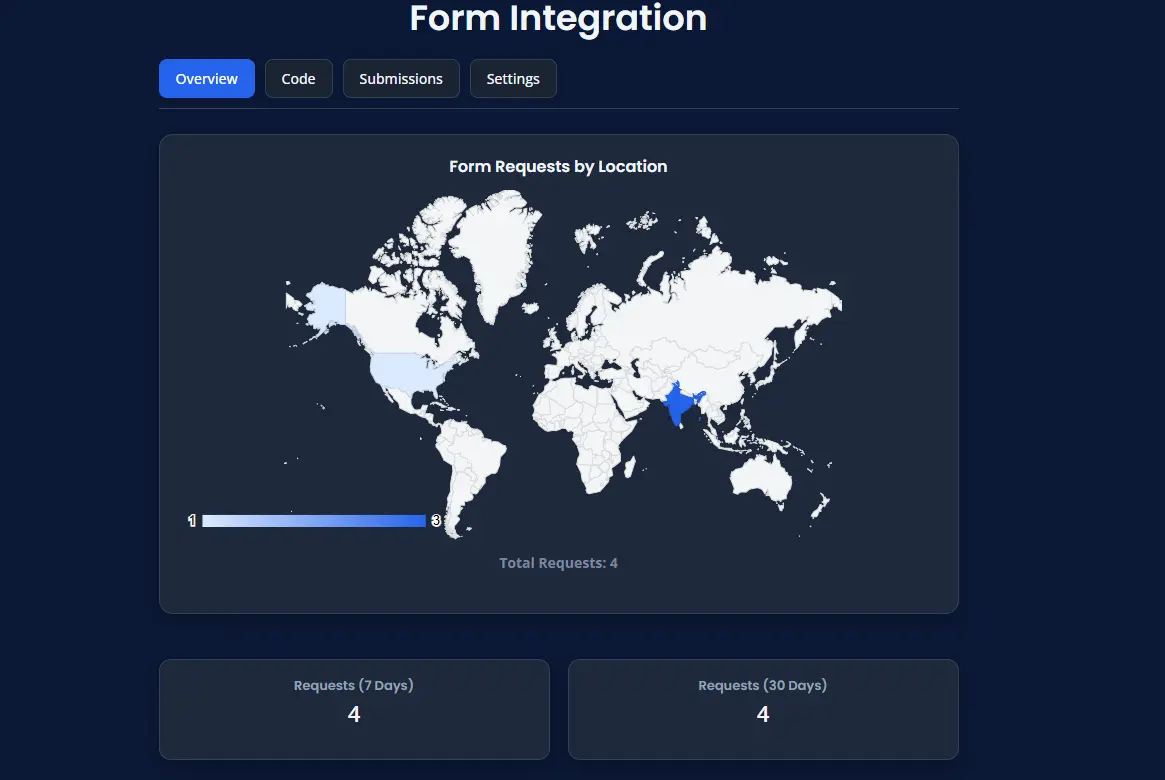
The Overview section gives you a quick summary of recent activity.
You may see:
- request count for the last 7 days
- request count for the last 30 days
- simple charts for submission activity
- basic location view
This helps you understand whether your form is receiving traffic.
Overview Example

Submissions
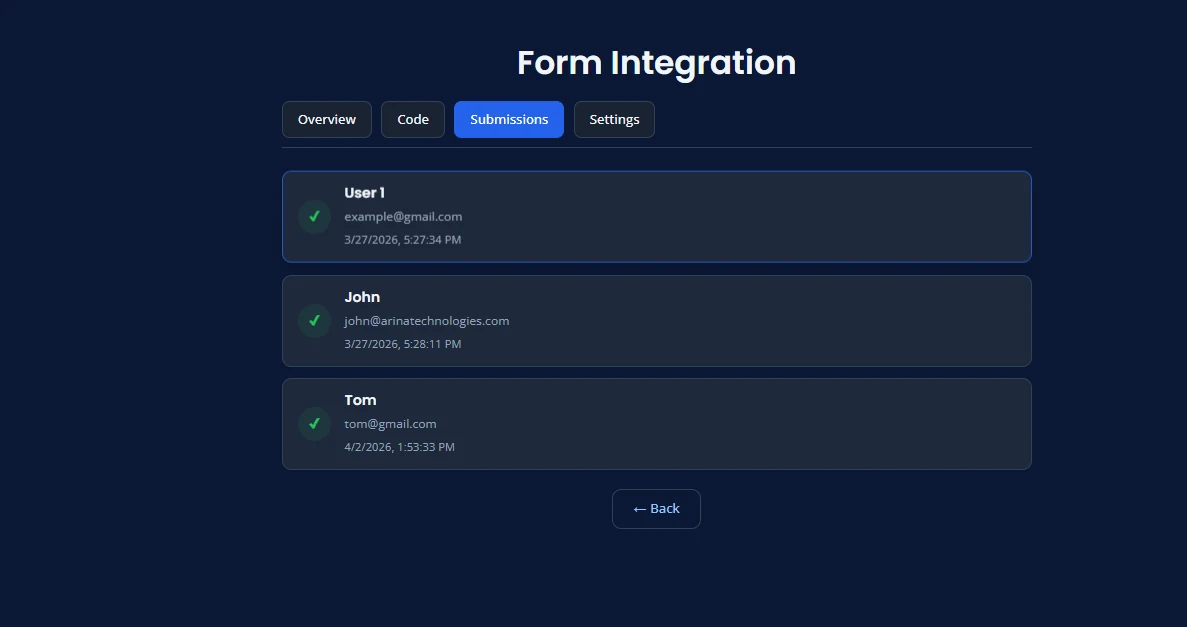
The Submissions section shows the messages people have sent through your form.
A submission entry may show:
- sender name
- sender email
- date and time
- submission preview
- other form details
This makes it easier to quickly scan recent requests.
Submissions Example
Open a Submission
- Open Submissions.
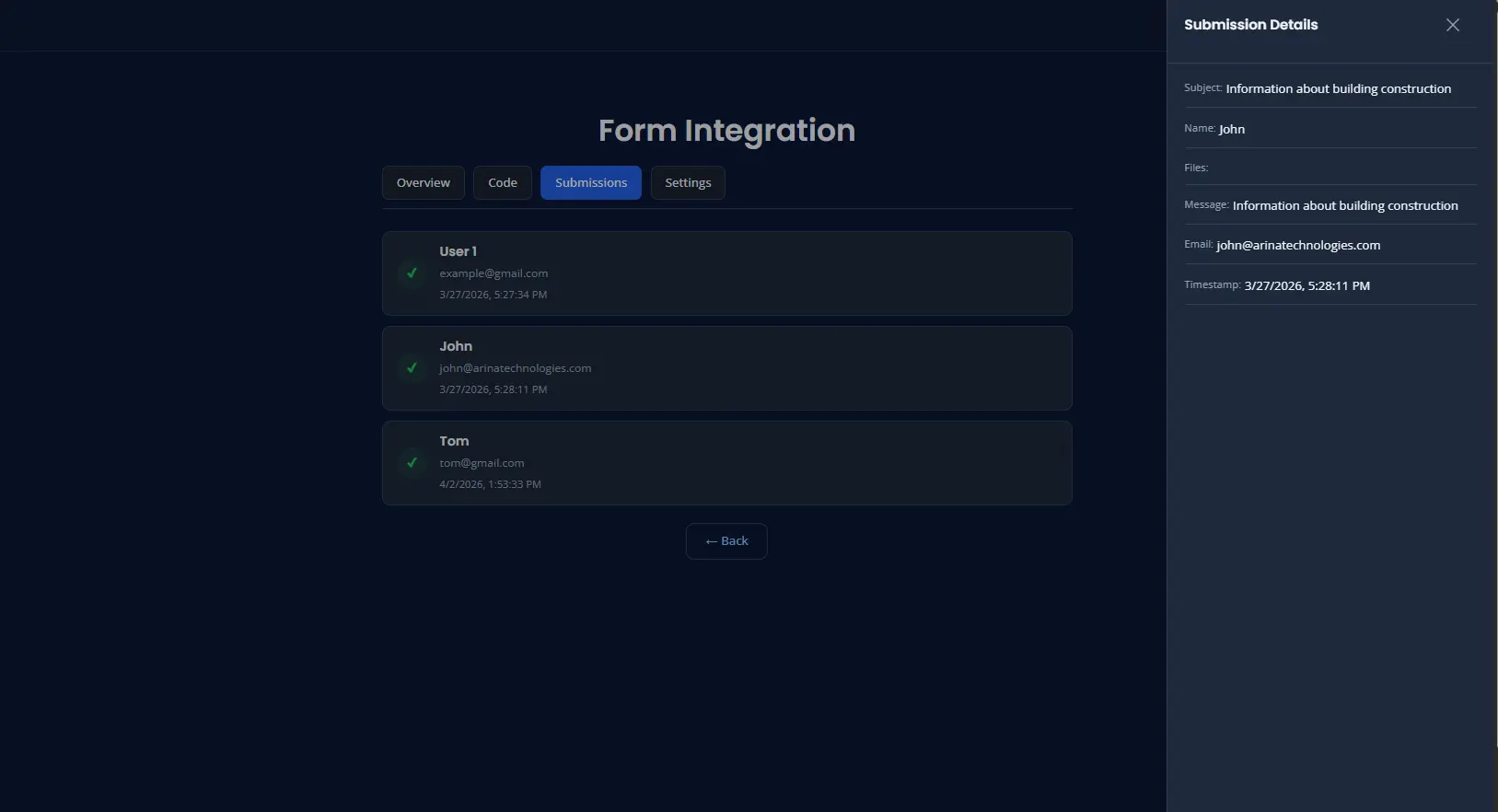
- Click a submission entry.
- Review the full details.
This is useful when you want to read the full message or follow up with the customer.
Single Submission Example
If No Submissions Appear
If you see No submissions yet, check the following:
- confirm the form is added to a live page
- submit a test message yourself
- confirm the page is using the correct endpoint
- confirm your form fields include names
- refresh the dashboard
If You Have More Than One Form
When a plan has multiple forms, the dashboard may first ask you to pick which form you want to manage.
Choose the form by name before reviewing submissions.
Recommended Routine
A simple routine is:
- check submissions daily
- reply to customer enquiries quickly
- keep form names clear so you know which page or purpose each form belongs to