Form Settings — File Upload
File Upload allows visitors to attach files when submitting the form.
This is useful for resumes, documents, screenshots, or other supporting files.
File Upload is available for paid plans only, and it must be enabled before visitors can upload files.
Open File Upload Setting
- Open Forms.
- Choose your plan.
- Click 🛠️ Form Settings.
- Locate the File Upload section.
File Upload Settings
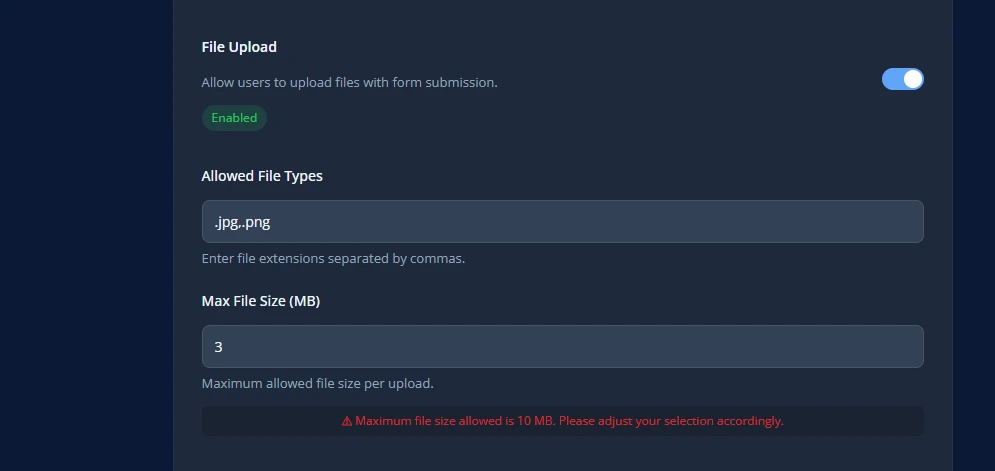
You may see settings such as:
- Allowed File Types
- Max File Size (MB)
Make sure you configure these values carefully based on what files you want to accept.
File Upload Limit
Show a warning that users can upload files up to 10 MB only.
File Upload Example
Best Practices
- allow only the file types you really need
- keep the file size limit practical
- mention file restrictions clearly on the form
- test uploads before going live
Save Changes
After updating file upload settings:
- Click Save Settings.
- Submit a test form with a file.
- Confirm the upload works correctly.